While a user may create an account and recieve activation from an admin, to be able to deploy unikernels and access other resources, they need permissions. These permissions are granted to a user via policies granted via albatross. An admin has the priviledges necessary to grant resources to any user. The following actions can only be performed by an admin.
Accesing Users
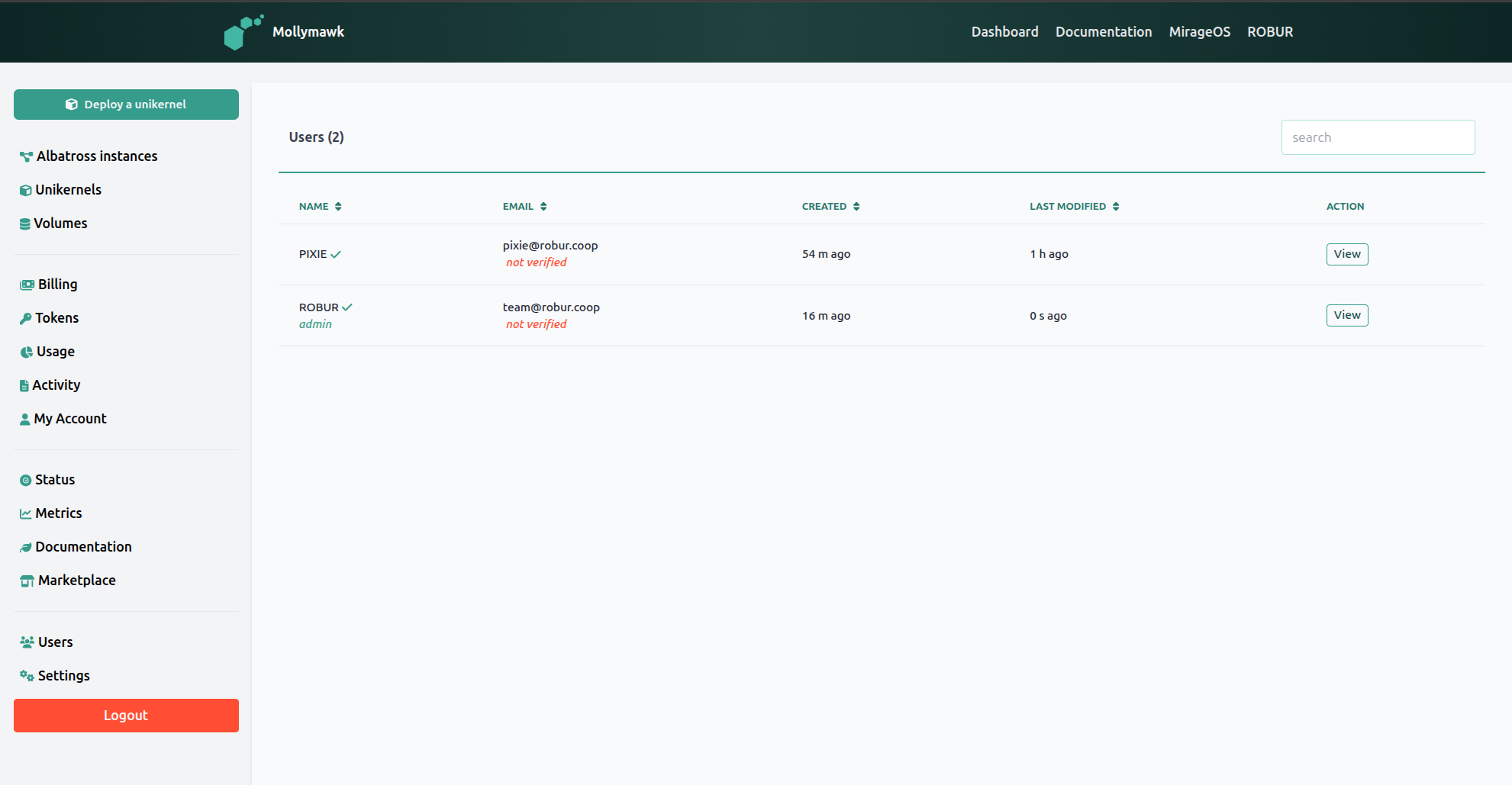
On the sidebar, you may acces the list of user by clicking on the Users menu. While on this users’ page, you can apply actions to a particular user by clicking the View button.
Modifying Policies
When on the user’s account page, you can see information about their policies by clicking on the Resource policy tab.
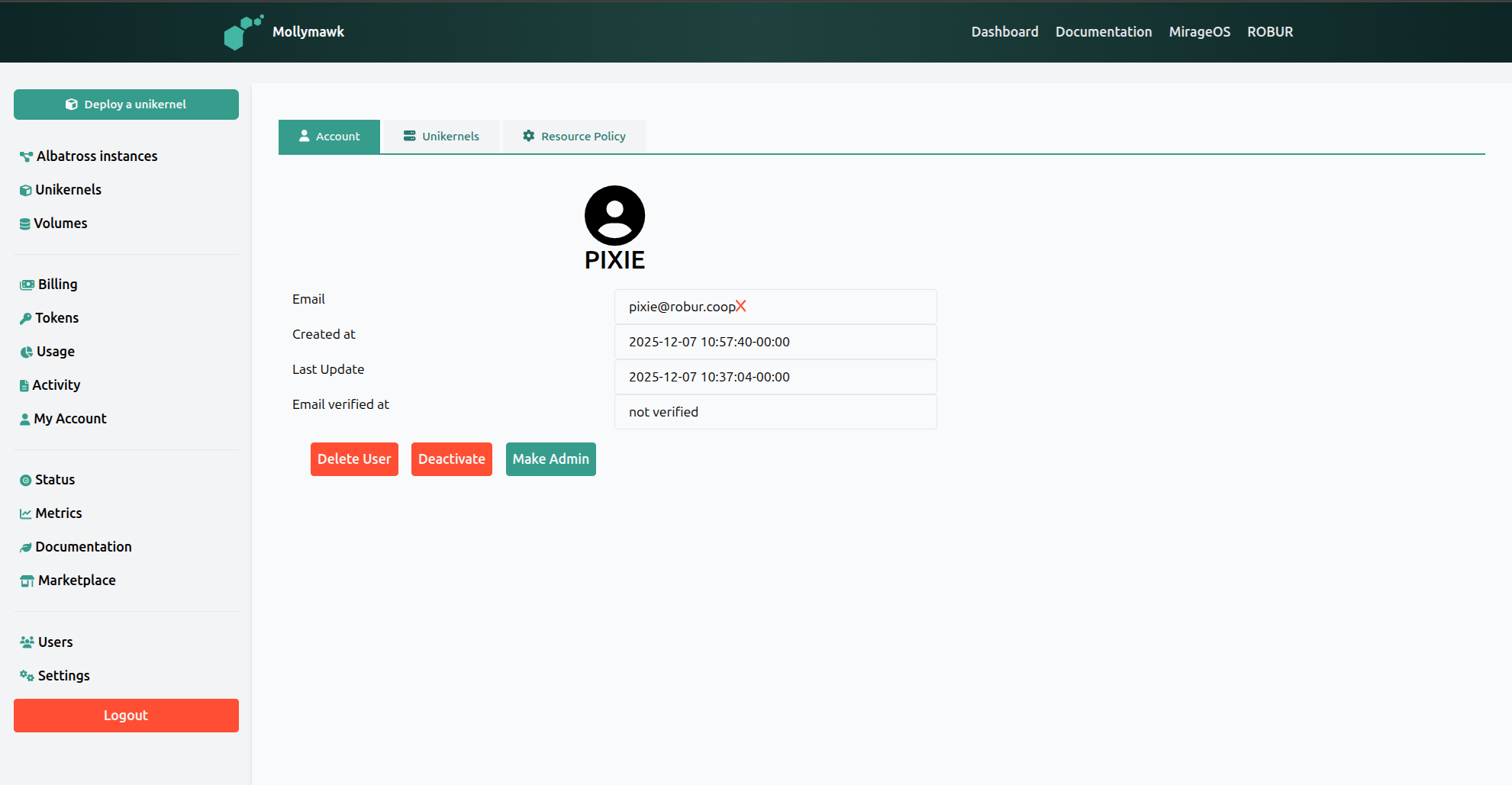
Here, you will see the various policies the user has with respect to all the albatross servers available. To edit or update a policy for the user, click on the Edit button.
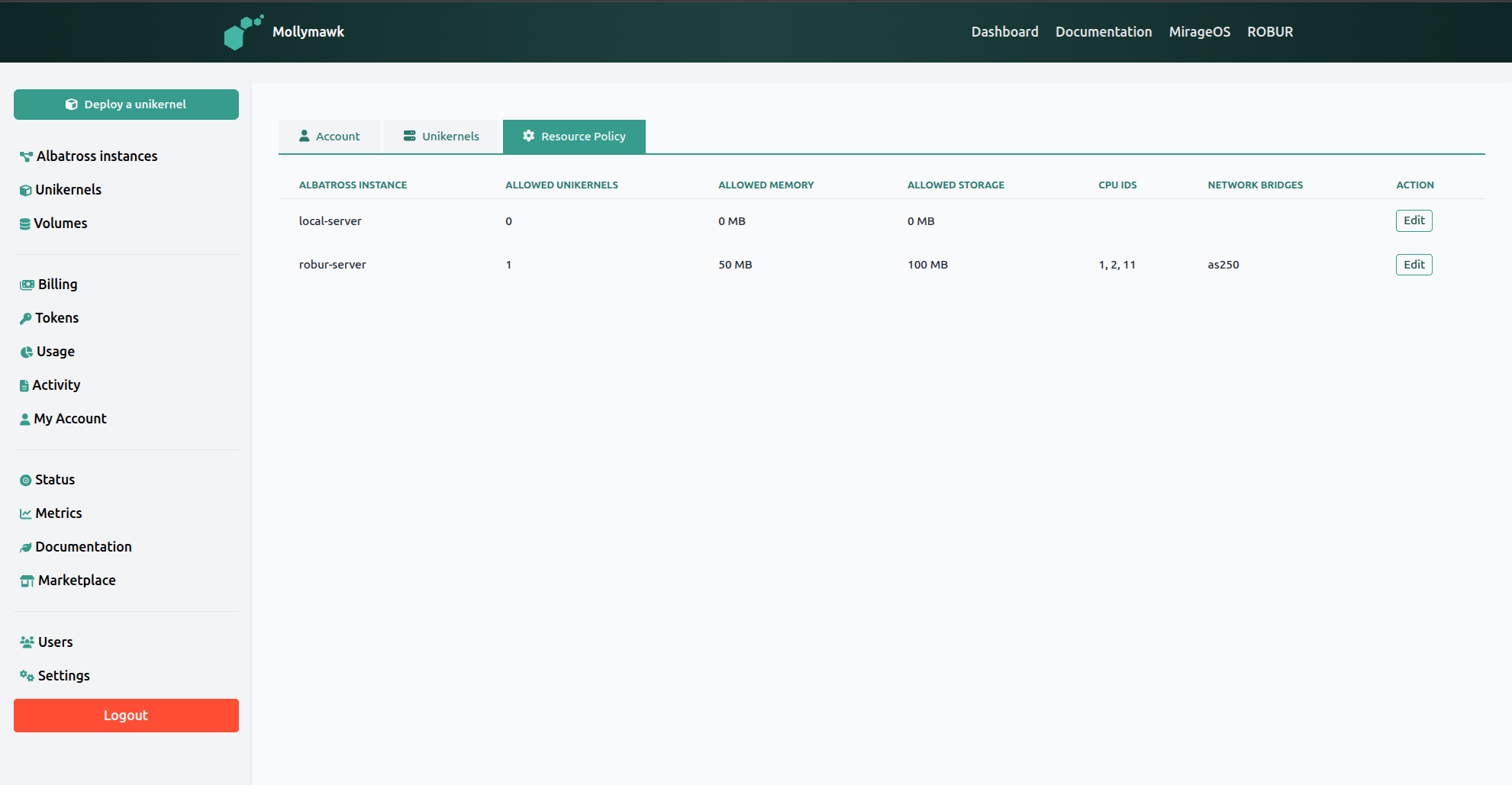
On this page, you will see a form with all the available resources you can assign to a user which constitute the policy for the user.
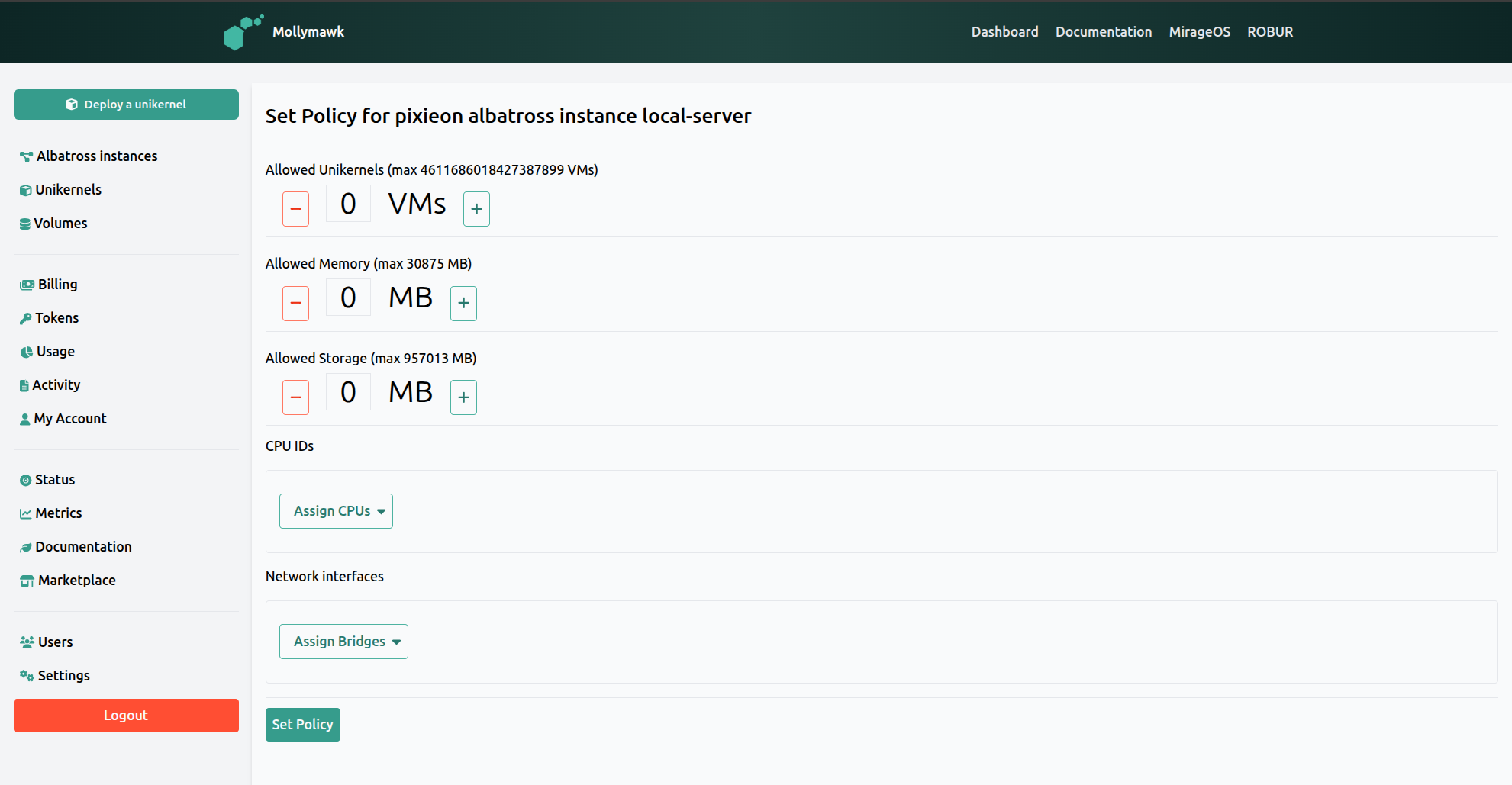
When an administrator updates the resource policy for a user on Mollymawk, they are essentially defining the “budget” of system resources that specific user is allowed to consume on a specific Albatross instance. This is accessed via the “Resource Policy” tab in a user’s profile.
The policy update interface provides the following configuration options:
1. Quantitative Resource Limits
The administrator can define specific numerical limits for the user. The interface displays the maximum amount available to be assigned based on the server’s unallocated resources,.
- Allowed Unikernels: This sets the maximum number of distinct unikernels (VMs) the user is permitted to deploy simultaneously,.
- Allowed Memory: This defines the total limit of RAM, measured in Megabytes (MB), that the user’s running unikernels can consume collectively,.
- Allowed Storage: This sets the total limit of block storage space, measured in Megabytes (MB), available to the user for persistent data,.
2. Hardware and Network Assignments
Beyond simple counts and capacities, the administrator can restrict the user to specific physical or logical hardware paths.
- CPU IDs: The Assign CPUs option allows the administrator to designate specific CPU cores that the user’s workloads are permitted to utilize.
- Network Interfaces: The Assign Bridges option allows the administrator to specify which network bridges the user’s unikernels can attach to, effectively controlling their network access and isolation.
3. Policy Validation
When the “Set Policy” button is clicked, the system performs a validation check in the backend.
- Root Policy Check: The system verifies that the resources assigned to the user are “smaller” than (i.e., contained within) the root policy of the Albatross instance.
- Availability: If the requested policy exceeds the root policy or available resources, the update will be rejected to prevent over-provisioning.
Analogy: You can think of updating a user policy like giving a department a corporate expense card. You set a spending limit (Memory/Storage limits), decide how many transactions they can make (Unikernel limit), and specify exactly which vendors they are allowed to buy from (CPU/Network assignments), all while ensuring their budget doesn’t exceed the company’s total bank account (Root Policy).