Introduction
From Wikipedia: The mollymawks are a group of medium-sized albatrosses that form the genus Thalassarche.

( Bird image from New Zealand Geographic https://www.nzgeo.com/stories/a-wing-and-a-snare/ )
Mollymawk here, is a web interface for remotely managing albatross. Mollymawk provides an easy web interface to manage a fleet of unikernels, which maybe deployed over multiple albatross servers.
Both as an interactive user interface to point and click deploying and destroying unikernels, as well as a REST API with authentication.
This guide contains information about Mollymawk.
If you find typos, or find parts difficult to understand, please report an issue or pull request at the source repository.
Deploy a Mollymawk unikernel
Mollymawk is a unikernel itself, and communicates via TLS with albatross. It preserves state about users and configuration for the remote albatross instances.
The assumption is that only mollymawk maintains and modifies the albatross that is running - it is not supported that you run other administrative tasks (such as modifying the policies) while mollymawk is running.
Installation
You can download the unikernel binary from our reproducible build infrastructure. Download the bin/mollymawk.hvt artifact.
You need as well solo5-hvt which our reproducible build infrastructure builds for select platforms.
If we don’t build for your platform you need to build it yourself.
Building from source (alternative)
Here we document how to build the unikernel from source.
Prerequisites
First, make sure to have “opam” and “mirage” installed on your system.
Git repository
Do a git clone https://github.com/robur-coop/mollymawk.git to retrieve the
source code of Mollymawk.
Building
Inside of the cloned repository, execute mirage configure (other targets are
available, please check the mirage documentation):
$ cd mollymawk
$ mirage configure -t hvt
$ make
The result is a binary, dist/mollymawk.hvt, which we will use later.
Building solo5 from source (alternative)
See the instructions in doc/building.md in the Solo5 source tree.
Launching Mollymawk
To launch the unikernel, you need a solo5 tender (that the Building section already installed).
$ solo5-hvt mollymawk.hvt
You should see an address that opens Mollymawk on the browswer.
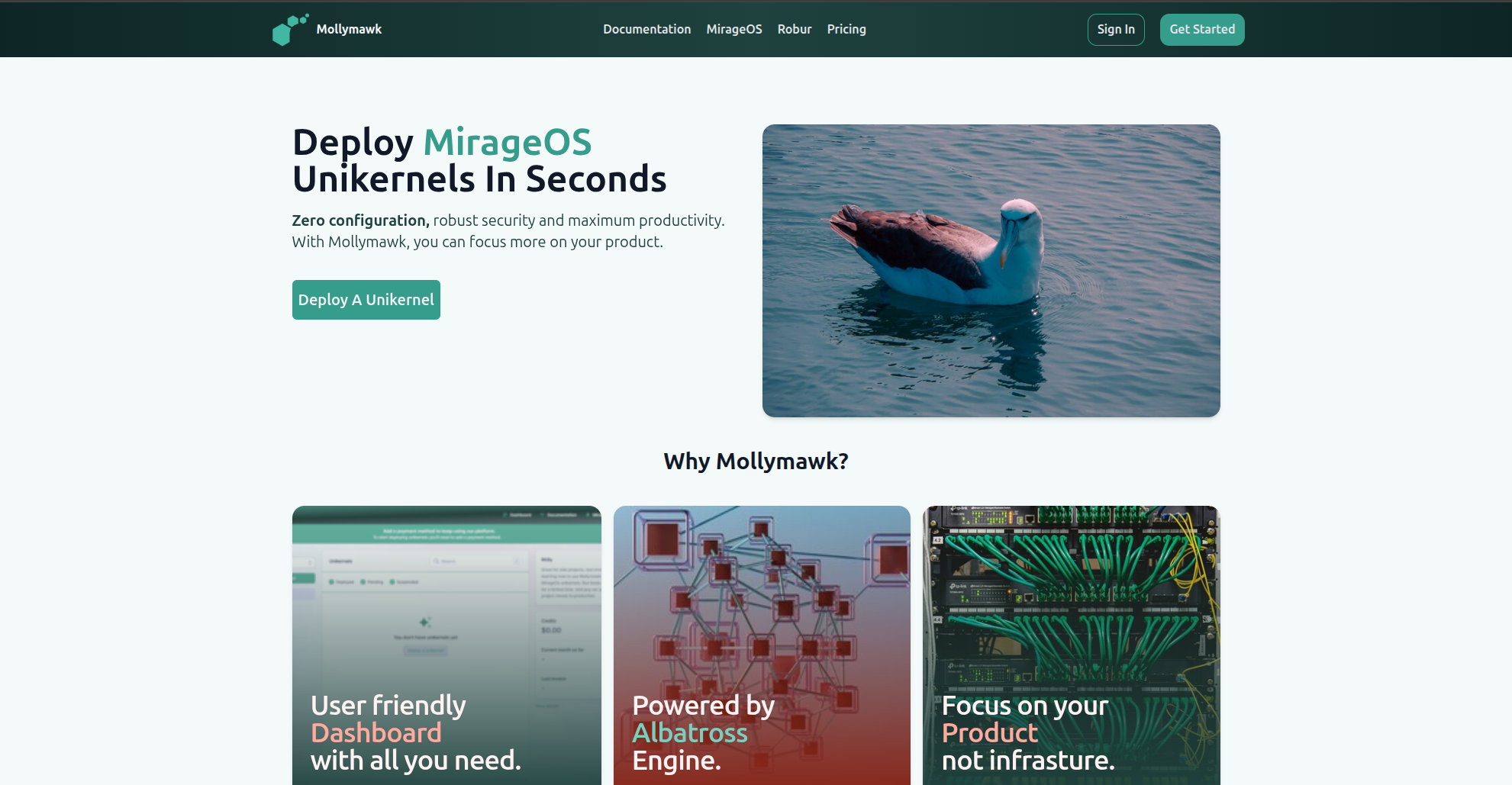
Robur’s Mollymawk
We have a live version of mollymawk deployed at https://mollymawk.robur.coop.
Creating an Account on Mollymawk
Accounts on Mollymawk are how a user is able to access the mollymawk dashboard and perform various actions.
Creating a new account
You can create a new account by navigating to the /sign-up endpoint.

To create an account on molllymawk, you need to provide a name, email and a password.
The First Account
When a new instance of Mollymawk is deployed, the database is initially empty. The platform contains specific logic to handle the very first registration differently from all others.
- Automatic Admin Status: The first user to register on the platform is automatically granted Super User (Admin) privileges.
- Automatic Activation: This initial account is also automatically activated upon creation, allowing immediate access to the dashboard without requiring approval.
This mechanism ensures that the owner of the Mollymawk instance can immediately log in and begin managing the system and subsequent users.
Standard User Registration
For all users registering after the initial administrator, the process includes a security step to prevent unauthorized access.
- Default Status: When a subsequent user registers, their account is created with
activeset tofalseandsuper_userset tofalse. - Pending Approval: These accounts cannot access the system immediately. They remain in an inactive state until they are manually approved by an administrator.
Account Administration
Management of user access and albatross policies is restricted strictly to users with administrative privileges.
Activating Accounts
Because standard accounts are created as inactive, an administrator must log in to the dashboard to approve them.
- The Process: An admin can view a list of users and select a specific account.
- Activation: The admin uses the “Activate” button on the user’s profile to grant access.
Granting Admin Privileges
Only an existing administrator can promote another user to an admin role.
- Privilege Escalation: An admin can promote a standard user by selecting “Make Admin” in the user interface.
- Security Check: The system verifies that the requestor is an admin before processing the request.
- Safety Lock: The system prevents the deactivation or removal of administrator privileges if the target user is the last remaining active administrator or active user, ensuring the system never becomes locked out.
Logging in
You can log in to an account by navigating to the /sign-in endpoint.
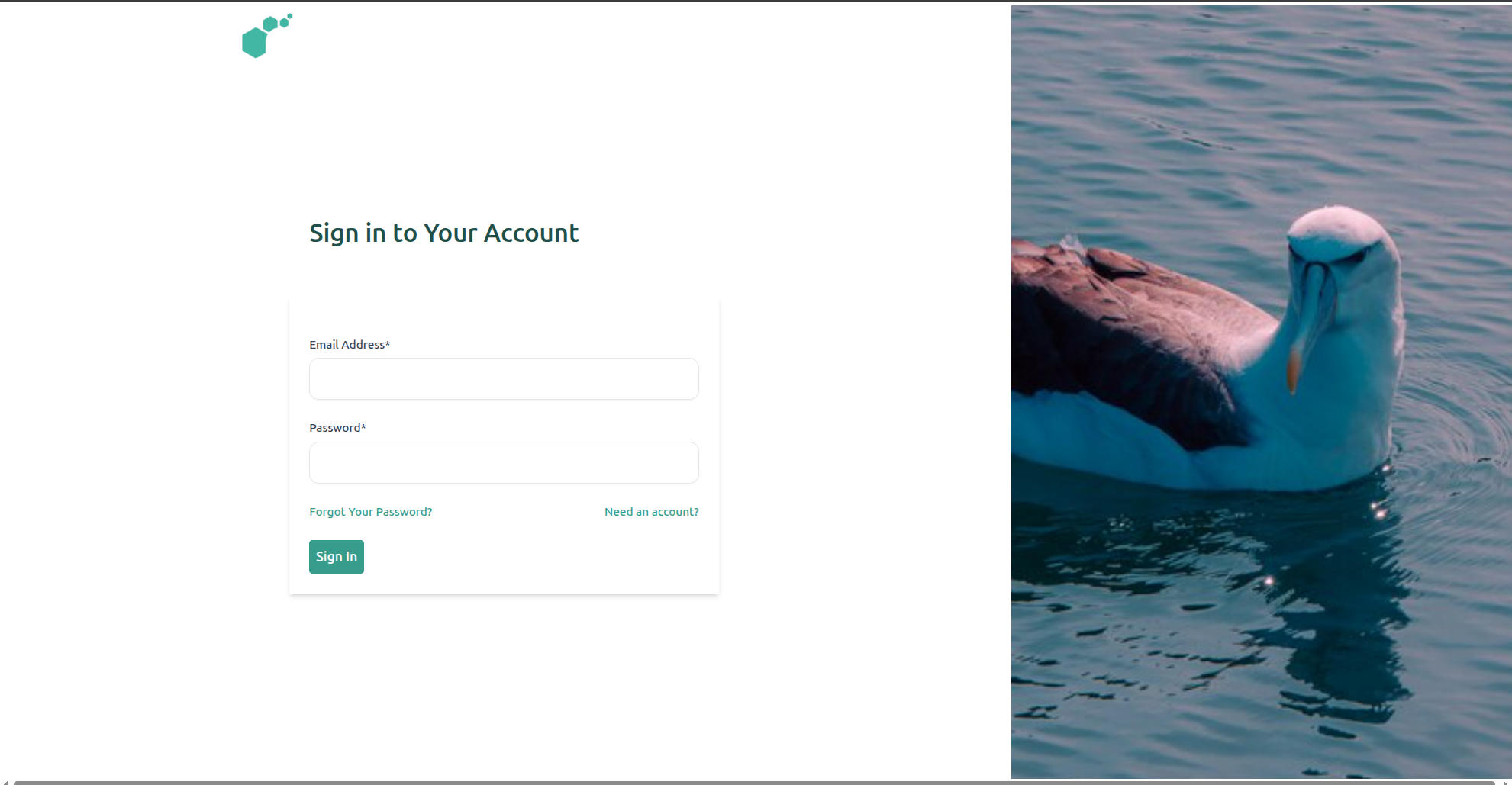
To access your account in Mollymawk, use the sign in page. Enter the email you created the account with and your password. If all checks out, you should be redirected to the dashboard.
Email Verification
This functionality is not yet functional.
Recovering Accounts
Resetting forgotten passwords is not yet functional.
Removing an Account
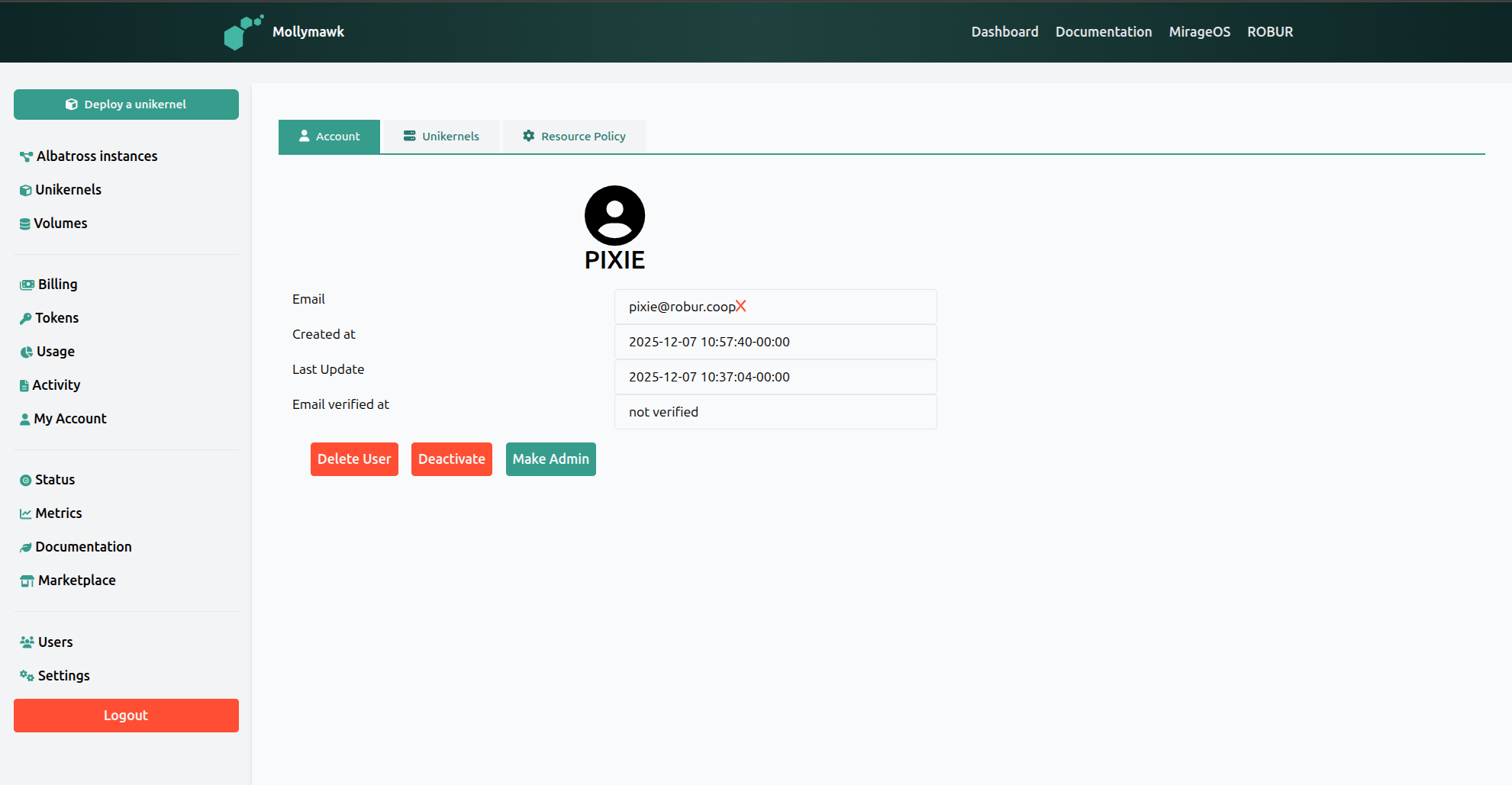
This action can only be performed by an account with Administrator priviledges. To remove an account from Mollymawk, from the user’s page, click the Delete User button.
Managing Albatross
Albatross is the engine that runs behind Mollymawk. It is responsible for the low level work necessary to deploy unikernels, destroy, update them, as well as block devices and other resources. Mollymawk is the UI that communicates with Albatross.
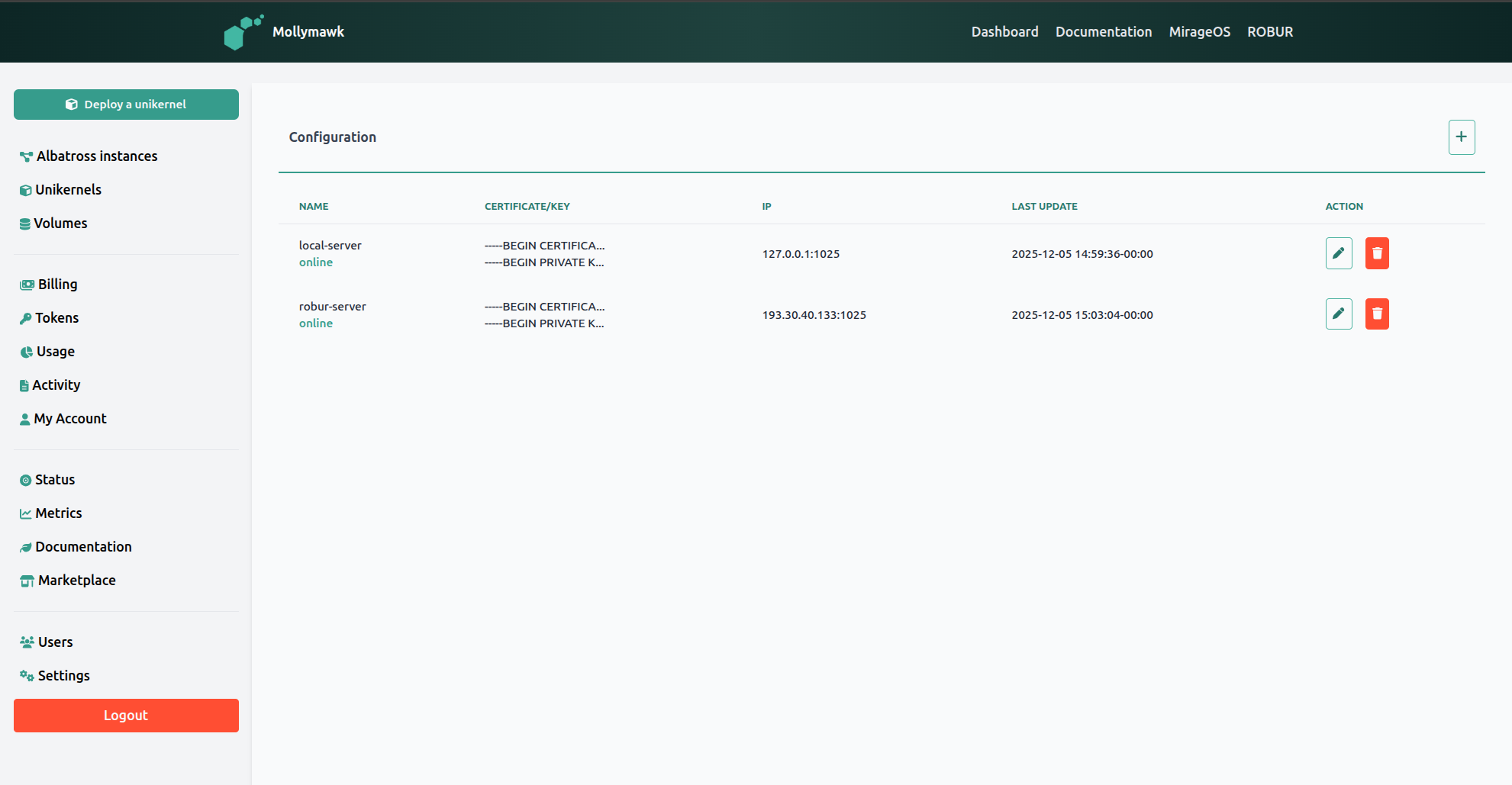
Mollymawk is able to manage actions regarding multiple albatross servers. To add a new albatross server, click the [+] button after navigating to the Settings page from the sidebar.
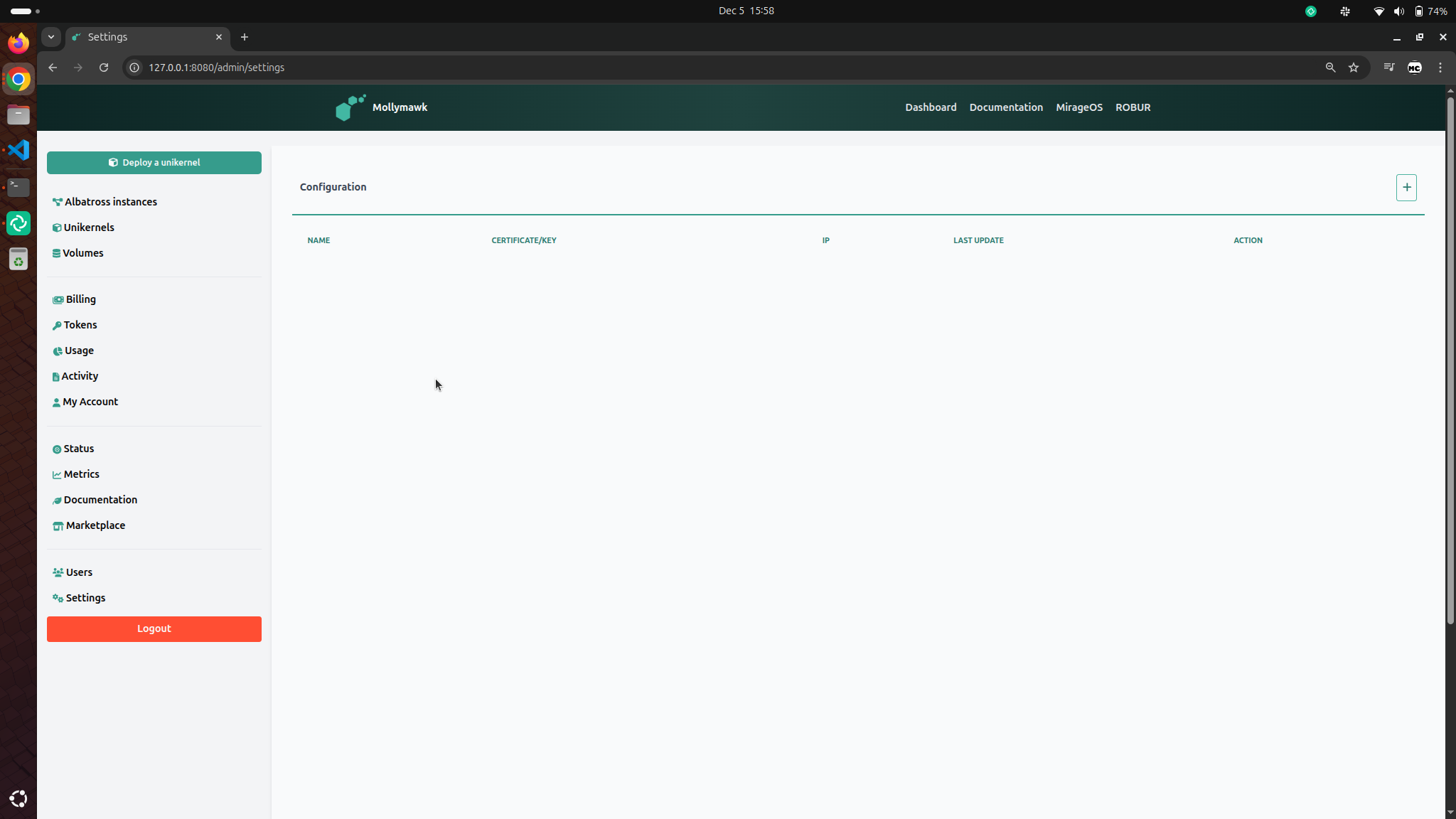
Albatross Server Configuration
Information needed per instance
- Name – Friendly label (e.g.,
prod-eu-1) - IP – e.g.,
10.0.42.15 - Port – Default for albatross is 1025
- Certificate – The contents of the certificate file. See Generating an Albatross certificate and key
- Key – The contents of the certificate’s key file. See Generating an Albatross certificate and key
Adding a new Albatross server
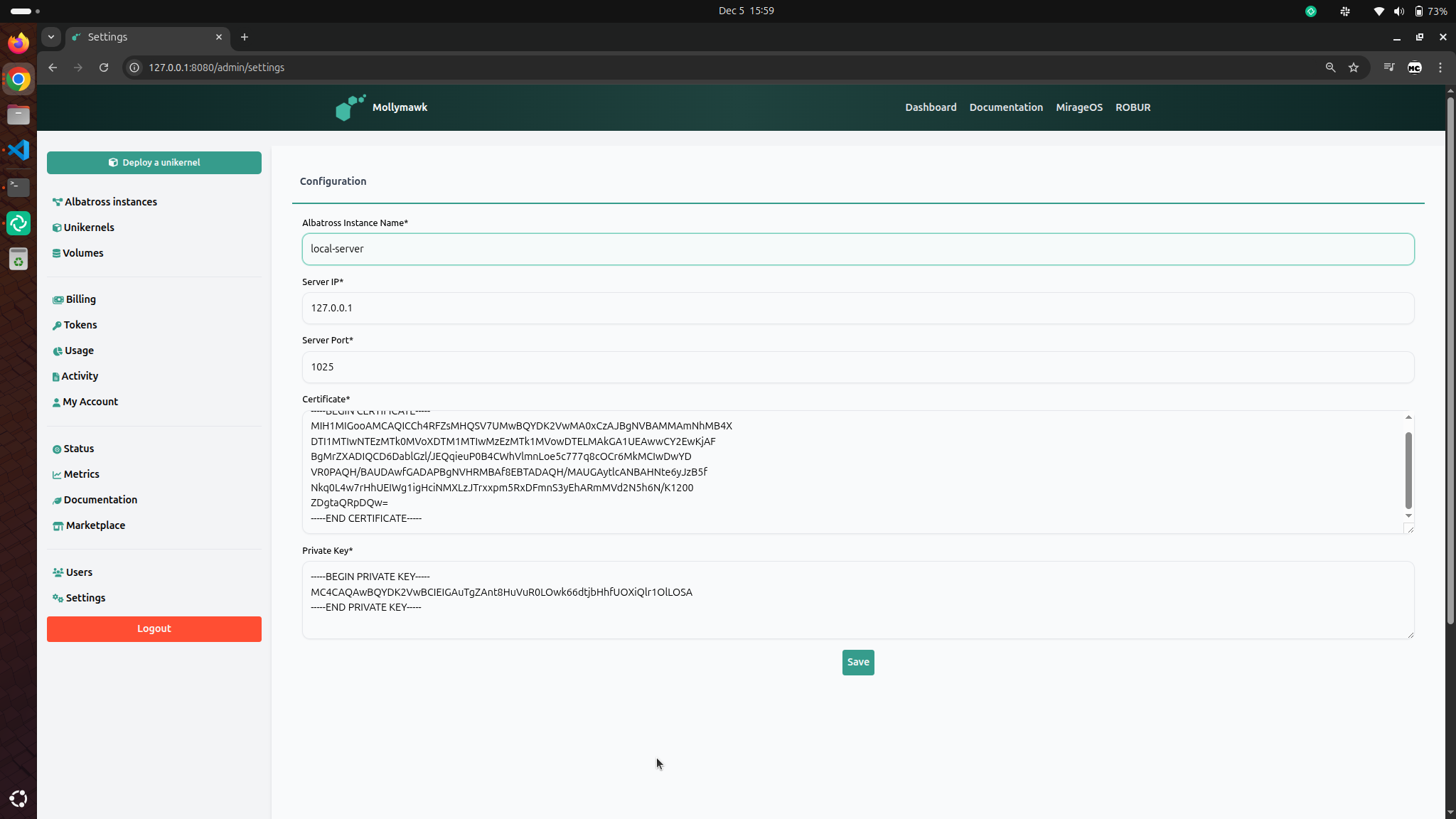
An albatross server can only be succesfully added if Mollymawk can succesfully connect to it. This implies the albatross server is online, healthy and can start accepting commands from Mollymawk. After a succesful connection, mollymawk will redirect to the settings page, listing the albatross server as online.
Updating or Removing an Albatross server
On the settings page, you can modify, or delete an albatross server configuration.
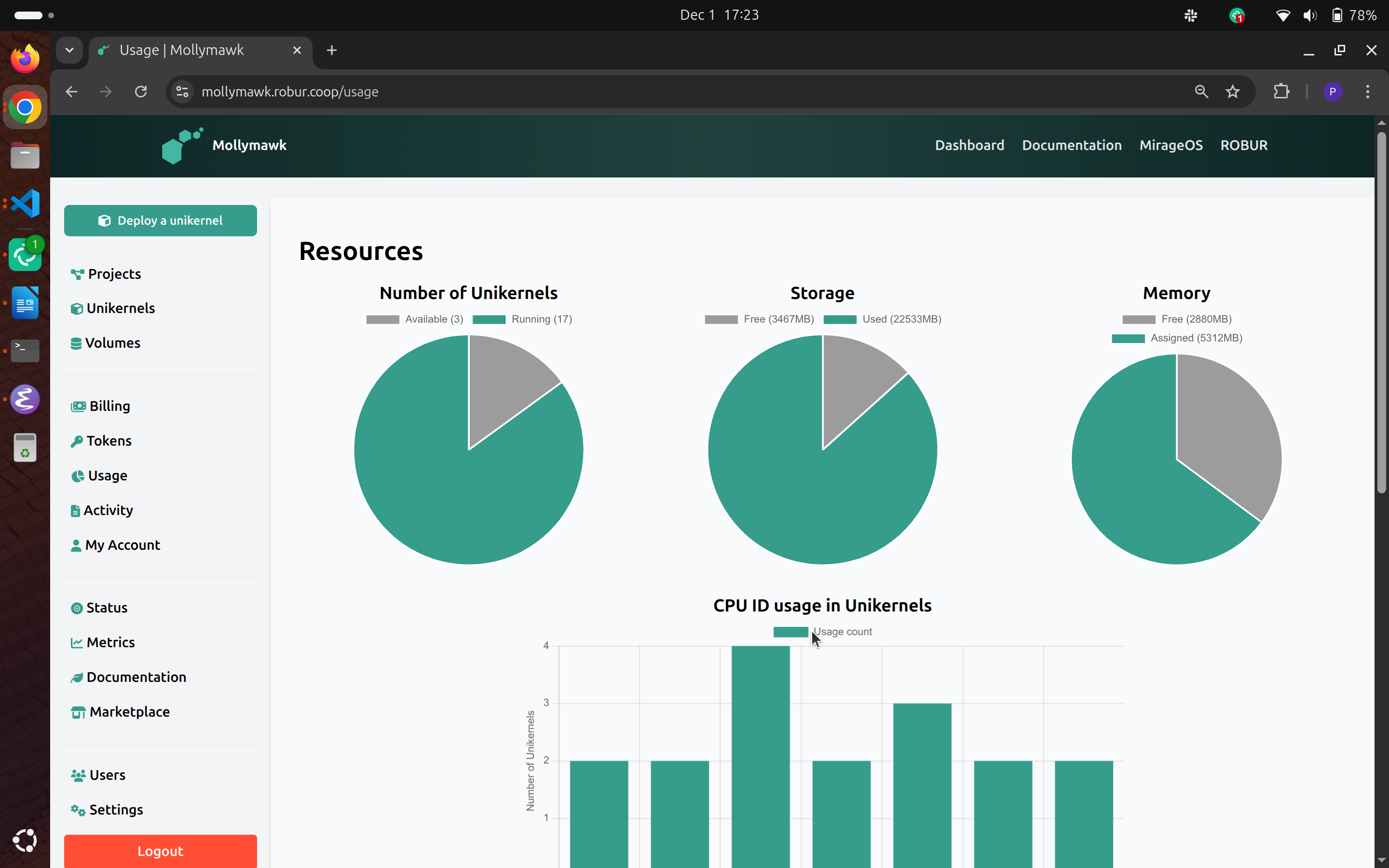
Usage metrics
From the sidebar, the Usage menu will display how much of a user’s policy they have consumed already.
User Policies
While a user may create an account and recieve activation from an admin, to be able to deploy unikernels and access other resources, they need permissions. These permissions are granted to a user via policies granted via albatross. An admin has the priviledges necessary to grant resources to any user. The following actions can only be performed by an admin.
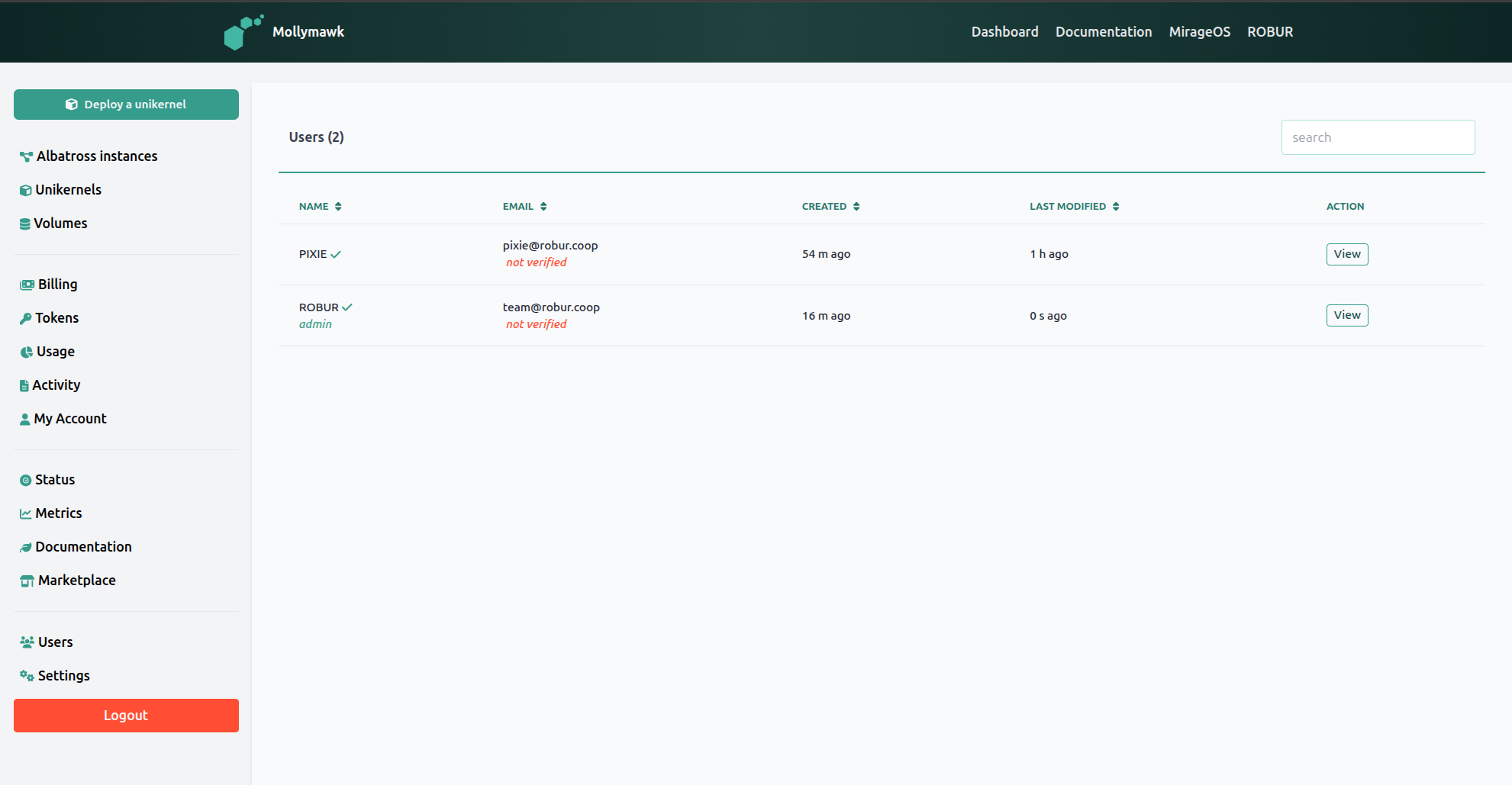
Accesing Users
On the sidebar, you may acces the list of user by clicking on the Users menu. While on this users’ page, you can apply actions to a particular user by clicking the View button.
Modifying Policies
When on the user’s account page, you can see information about their policies by clicking on the Resource policy tab.
Here, you will see the various policies the user has with respect to all the albatross servers available. To edit or update a policy for the user, click on the Edit button.
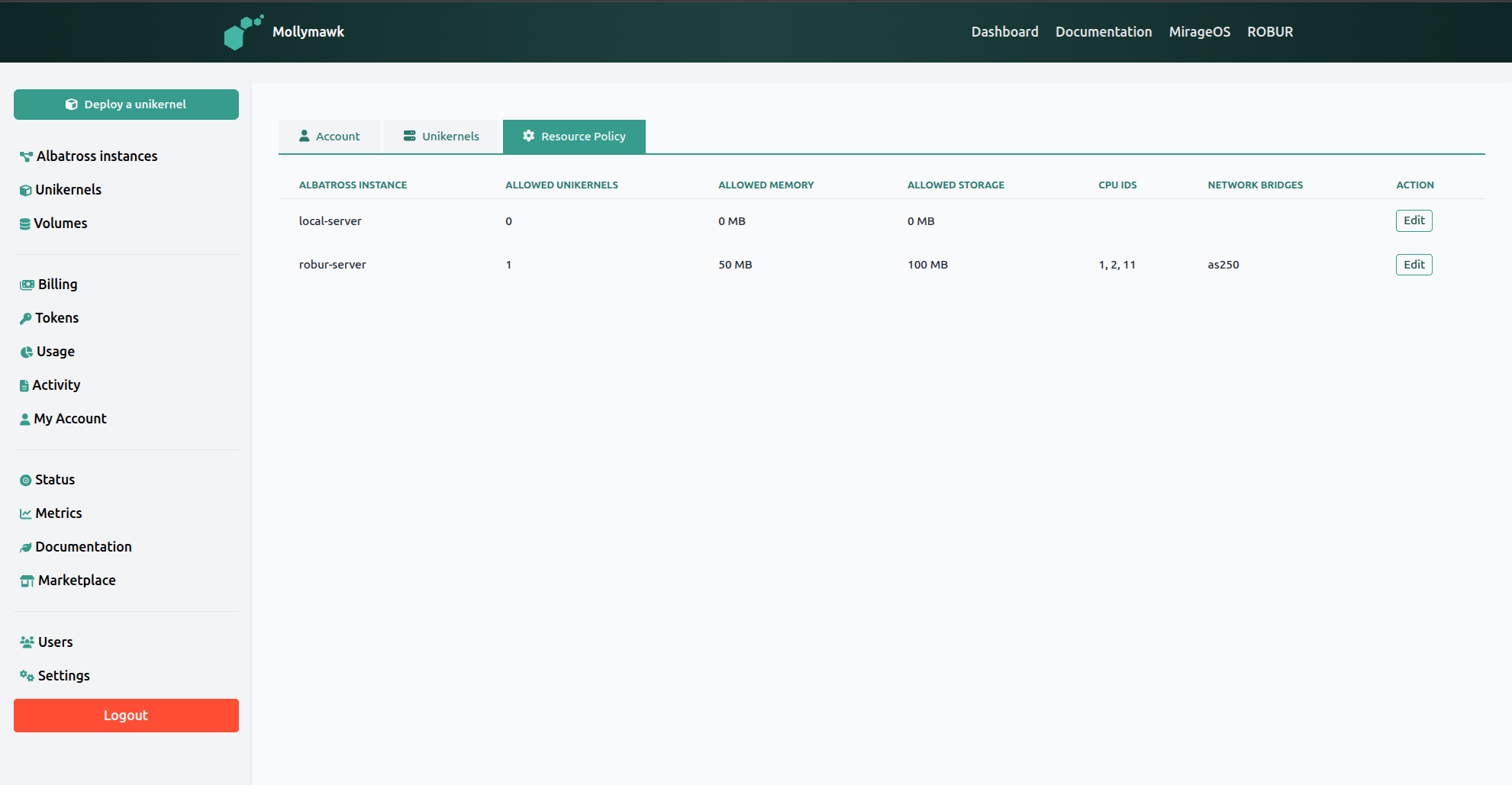
On this page, you will see a form with all the available resources you can assign to a user which constitute the policy for the user.
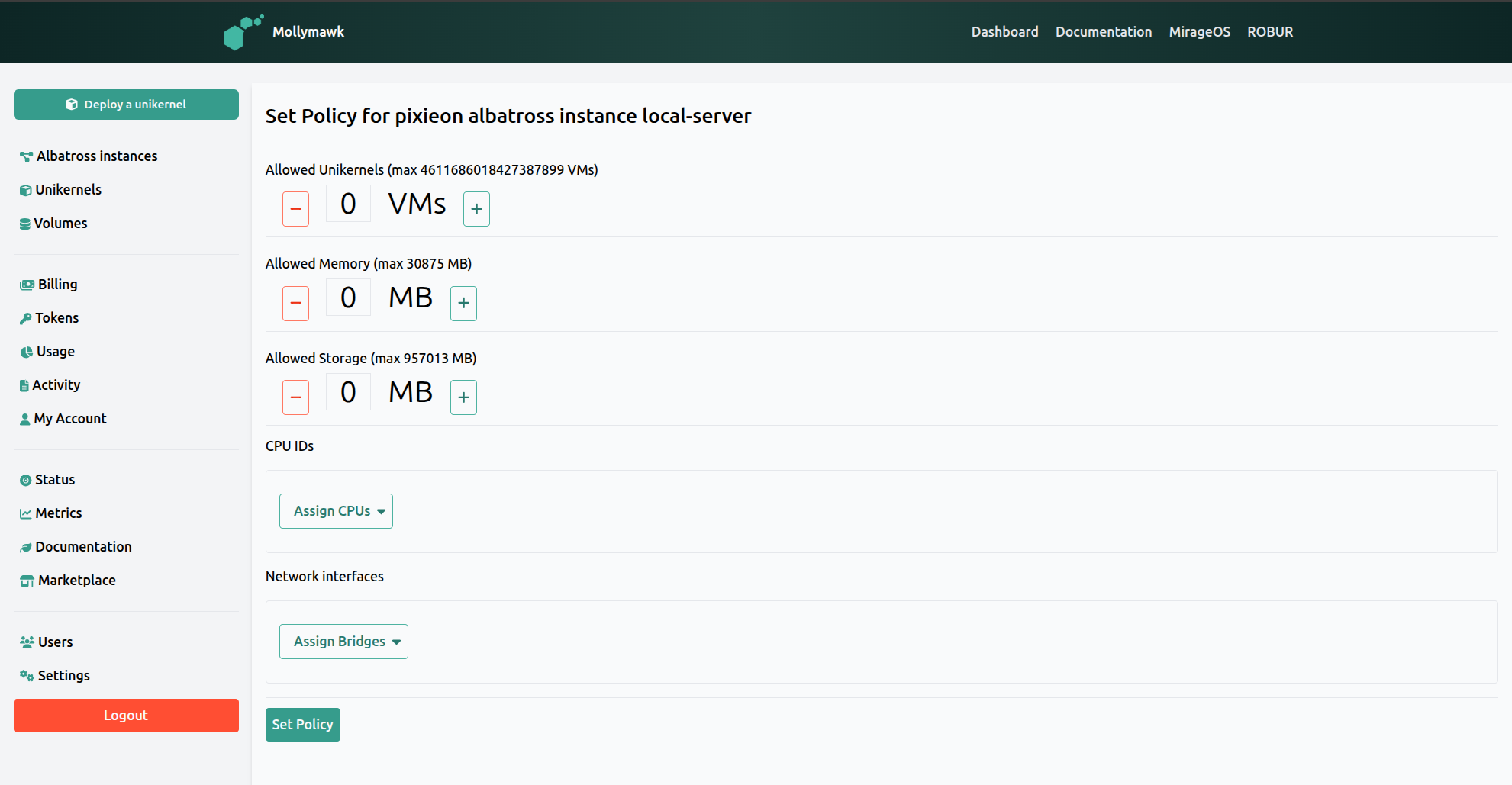
When an administrator updates the resource policy for a user on Mollymawk, they are essentially defining the “budget” of system resources that specific user is allowed to consume on a specific Albatross instance. This is accessed via the “Resource Policy” tab in a user’s profile.
The policy update interface provides the following configuration options:
1. Quantitative Resource Limits
The administrator can define specific numerical limits for the user. The interface displays the maximum amount available to be assigned based on the server’s unallocated resources,.
- Allowed Unikernels: This sets the maximum number of distinct unikernels (VMs) the user is permitted to deploy simultaneously,.
- Allowed Memory: This defines the total limit of RAM, measured in Megabytes (MB), that the user’s running unikernels can consume collectively,.
- Allowed Storage: This sets the total limit of block storage space, measured in Megabytes (MB), available to the user for persistent data,.
2. Hardware and Network Assignments
Beyond simple counts and capacities, the administrator can restrict the user to specific physical or logical hardware paths.
- CPU IDs: The Assign CPUs option allows the administrator to designate specific CPU cores that the user’s workloads are permitted to utilize.
- Network Interfaces: The Assign Bridges option allows the administrator to specify which network bridges the user’s unikernels can attach to, effectively controlling their network access and isolation.
3. Policy Validation
When the “Set Policy” button is clicked, the system performs a validation check in the backend.
- Root Policy Check: The system verifies that the resources assigned to the user are “smaller” than (i.e., contained within) the root policy of the Albatross instance.
- Availability: If the requested policy exceeds the root policy or available resources, the update will be rejected to prevent over-provisioning.
Analogy: You can think of updating a user policy like giving a department a corporate expense card. You set a spending limit (Memory/Storage limits), decide how many transactions they can make (Unikernel limit), and specify exactly which vendors they are allowed to buy from (CPU/Network assignments), all while ensuring their budget doesn’t exceed the company’s total bank account (Root Policy).
Unikernels
What is a Unikernel?
A unikernel is a specialized, single-address-space machine image constructed by using library operating systems. Unlike a traditional operating system (like Linux or Windows) where an application runs on top of a general-purpose kernel with many unused drivers and services, a unikernel compiles the application code together with only the specific operating system components it needs into a single bootable binary.
On the Mollymawk platform, this technology is characterized by the following:
- Zero Configuration: Unikernels are designed to be “zero configuration” appliances that deploy in seconds. Because the network and storage logic is compiled directly into the application, there is no need to log in to a shell to configure IP addresses or mount points after booting; these are handled as boot arguments or configuration parameters.
- Single Binary: Deployment does not involve installing an OS and then installing software. Instead, the user simply uploads a Unikernel Image Binary. This single file contains everything required for the application to run.
- Robust Security: Mollymawk highlights “robust security” as a primary benefit. By removing unnecessary code, drivers, and utilities (like a shell or multi-user support), the attack surface of the application is significantly reduced.
Resource Efficiency
Unikernels are highly efficient regarding system resources. While a traditional virtual machine might require gigabytes of RAM just to boot the OS, unikernels show extremely low resource footprints.
- Low Memory Usage: Running unikernels often utilize very small amounts of RAM, such as 32 MB, 64 MB, or 128 MB.
- Granular Control: Administrators can set precise limits on Allowed Memory and Allowed Storage (measured in MB) and even assign specific CPU IDs to control exactly which hardware resources the unikernel consumes.
The Technical Stack (MirageOS & Solo5)
The specific type of unikernels supported by mollymawk are built using MirageOS.
- Solo5: Solo5 is the interface layer that allows the MirageOS unikernel to talk to the host hardware or hypervisor.
- Albatross: The orchestration system managing these unikernels is called Albatross. It acts as the backend that receives the binary stream and executes the unikernel, handling the lifecycle (create, destroy, restart),.
Think of a traditional operating system like a fully furnished house. Even if you only want to sleep there (run one application), you still have to maintain the kitchen, the garage, extra bedrooms, and the plumbing—all of which take up space and could potentially be broken into by burglars.
A unikernel is like a camping tent. It contains exactly what you need to sleep and nothing else. It is incredibly lightweight, takes seconds to set up, has no “extra rooms” for intruders to hide in, and you can pack hundreds of them into the same space that a single house would occupy.
Creating Unikernels
A user needs to have a usable policy before they are able to deply a unikernel.
1. Initiation and Instance Selection
When the user clicks the Deploy a unikernel button in the sidebar, the browser attempts to navigate to the unikernel deployment form.
However, the backend performs a check if a specific Albatross instance (server) has been selected for this deployment.
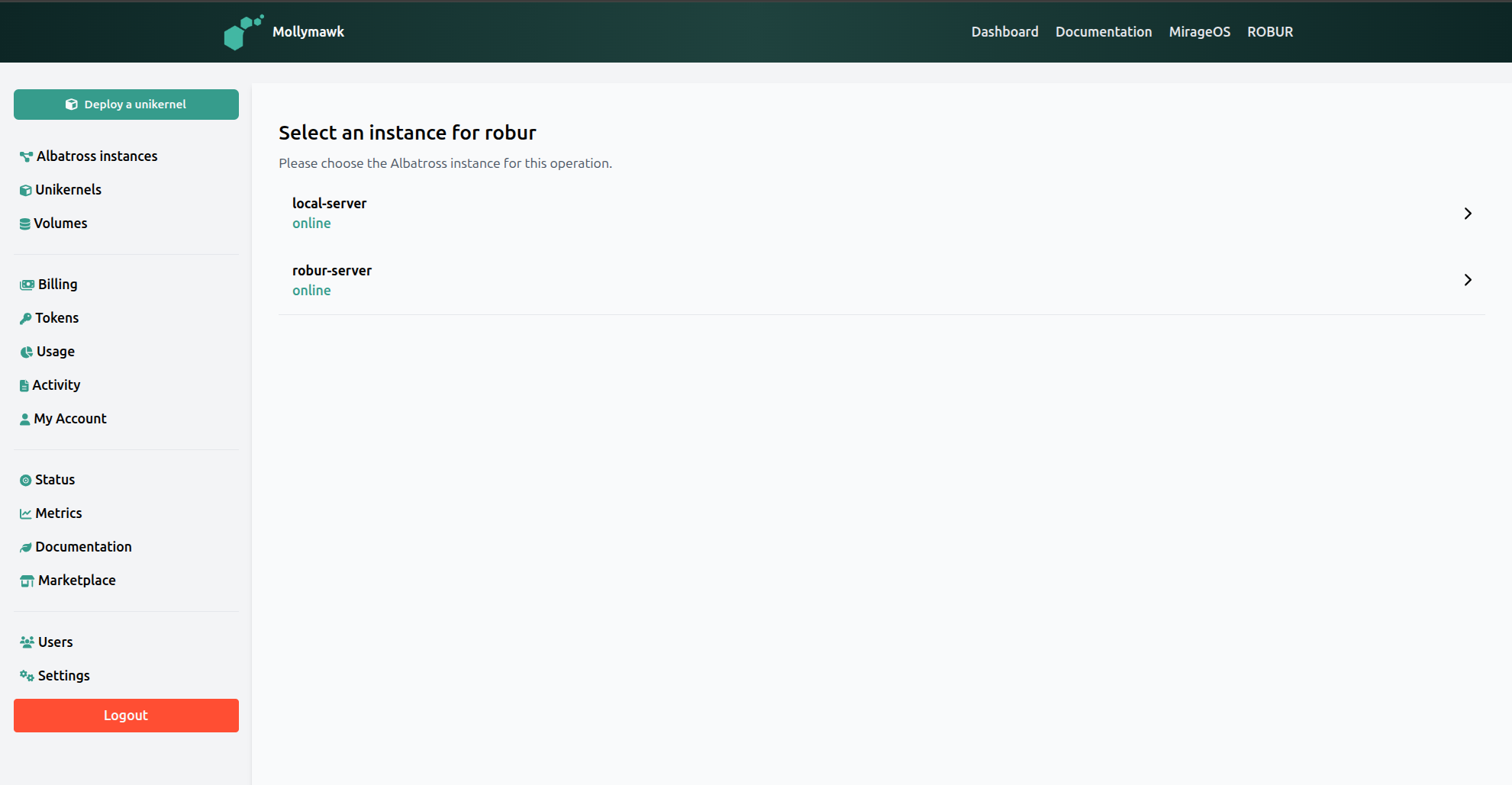
- Redirect to Selection: The system redirects the user to a page where all the albatross servers are listed.
- Auto-Selection: If only one instance exists, the system automatically skips this page and redirects the user to the deployment form with the instance pre-selected.
2. The Deploy Page
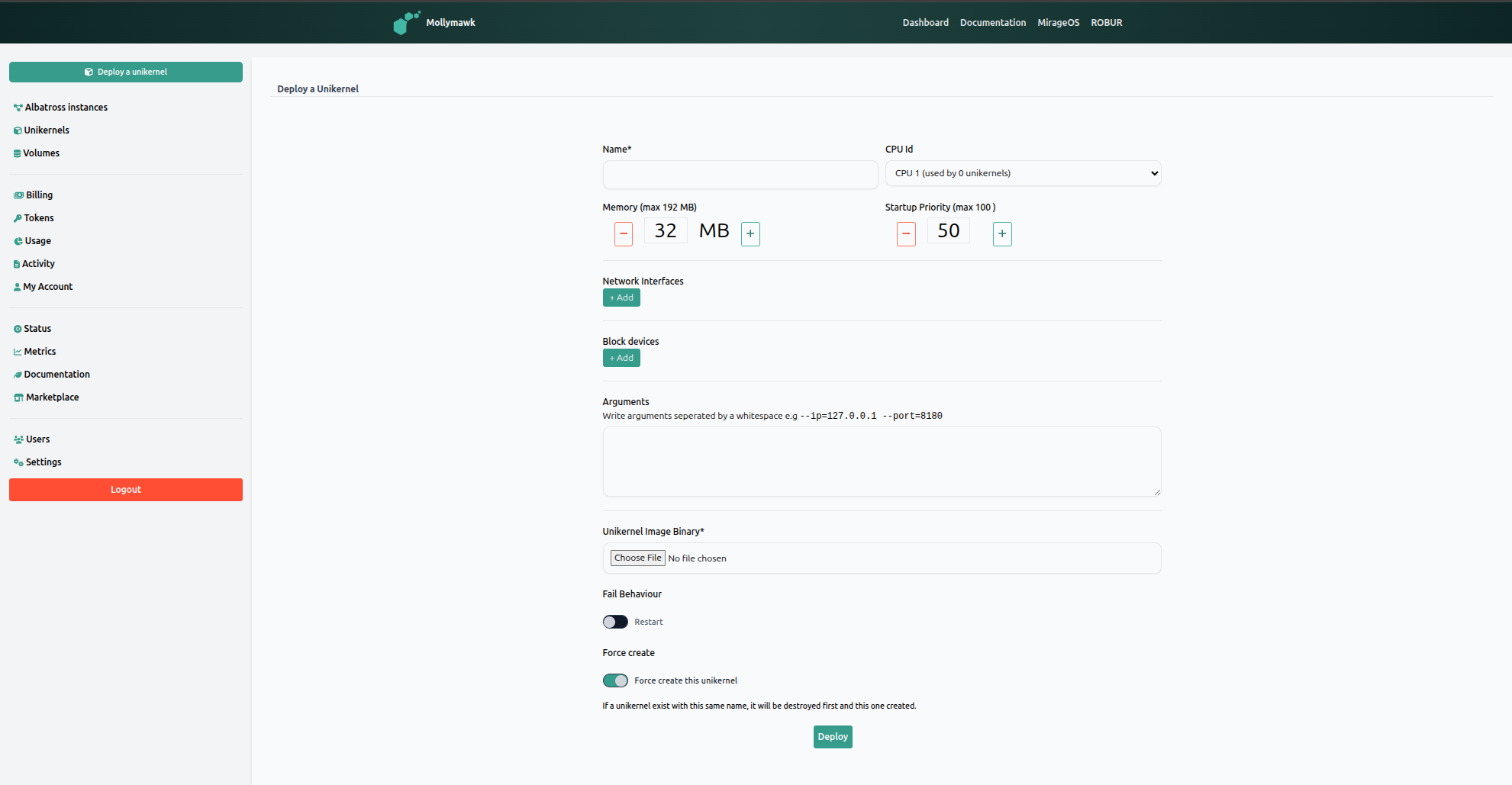
As shown in the deployment interface,, the user configures the following parameters:
- Name: The identifier for the unikernel.
- Resources: The user assigns a CPU Id and allocates Memory (e.g., 32 MB).
- Network & Storage: The user can add Network Interfaces and Block devices.
- Arguments: Boot arguments can be passed to the unikernel (e.g.,
--ip=127.0.0.1). - Fail Behaviour: A toggle to determine if the unikernel should restart on failure.
- Force Create: A toggle that, if enabled, will destroy an existing unikernel with the same name before deploying the new one.
- Unikernel binary Clicking on the
Choose Filebutton, the user can upload the binary image for the unikernel.
For a simple hello world unikernel, we need only to provide mollymawk with the binary, which can be downloaded from our reproducible build infrastructure. Additionally, toggle Fail Behaviour to be on so that the unikernel doesn’t exit after executing.
The backend processes this request using:
- Multipart Parsing: The system reads the request as a multipart stream, extracting the instance name, unikernel configuration, and the binary file,.
- Streaming to Albatross: Rather than buffering the entire file, the system streams the binary content directly to the Albatross.
- Command Execution: Depending on the “Force create” toggle, the system sends either a standard create command or a force create command to Albatross.
If successful, Albatross accepts the stream and initializes the unikernel, and the user is notified of the successful creation.
Managing unikernels
On the dashbaord, or after a succesful unikernel deployment, the user can see the list of all their running unikernels.
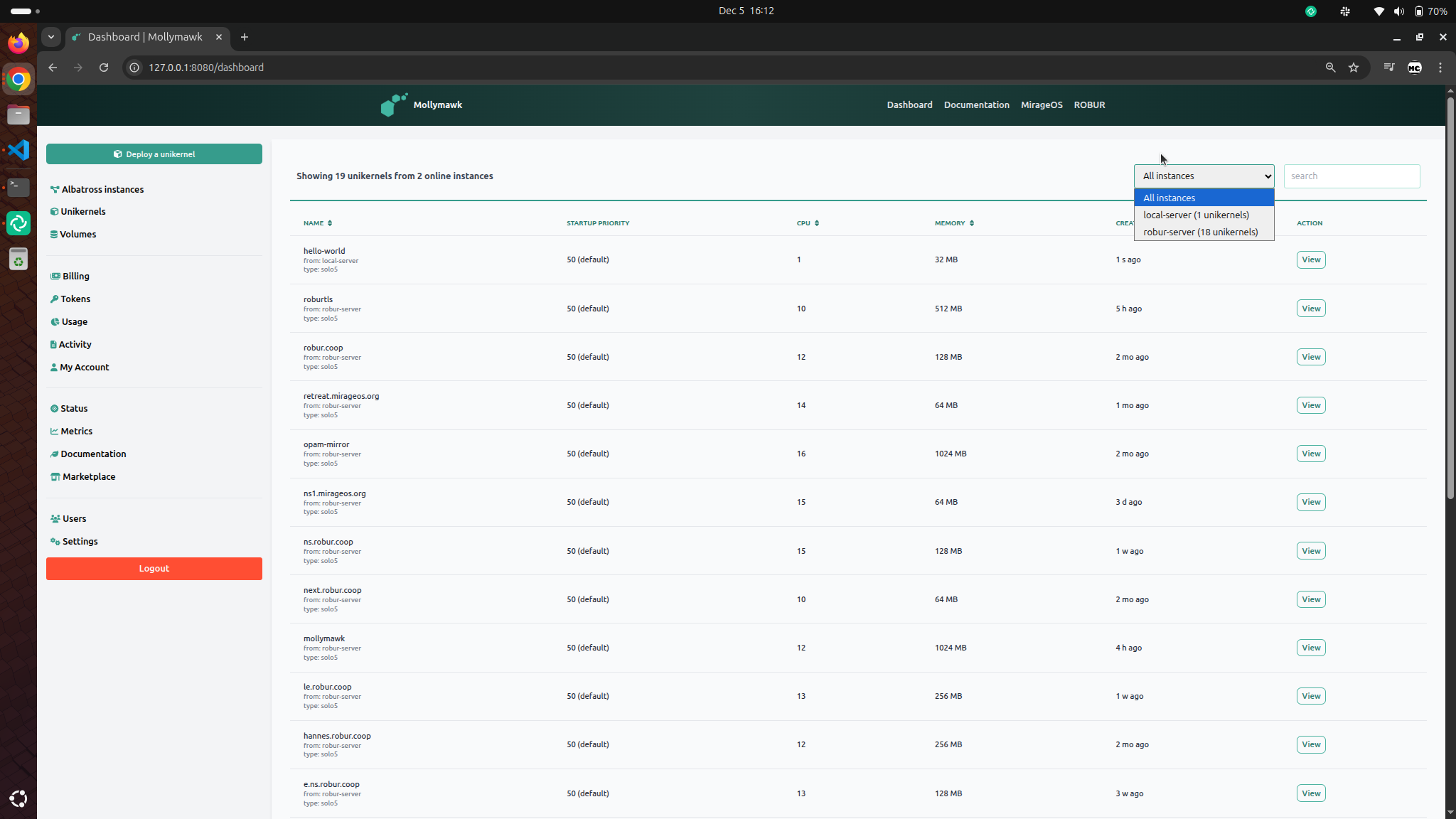
On the top-right corner, you can filter the unikernels by albatross server. To access a specific unikernel, click on the View button.
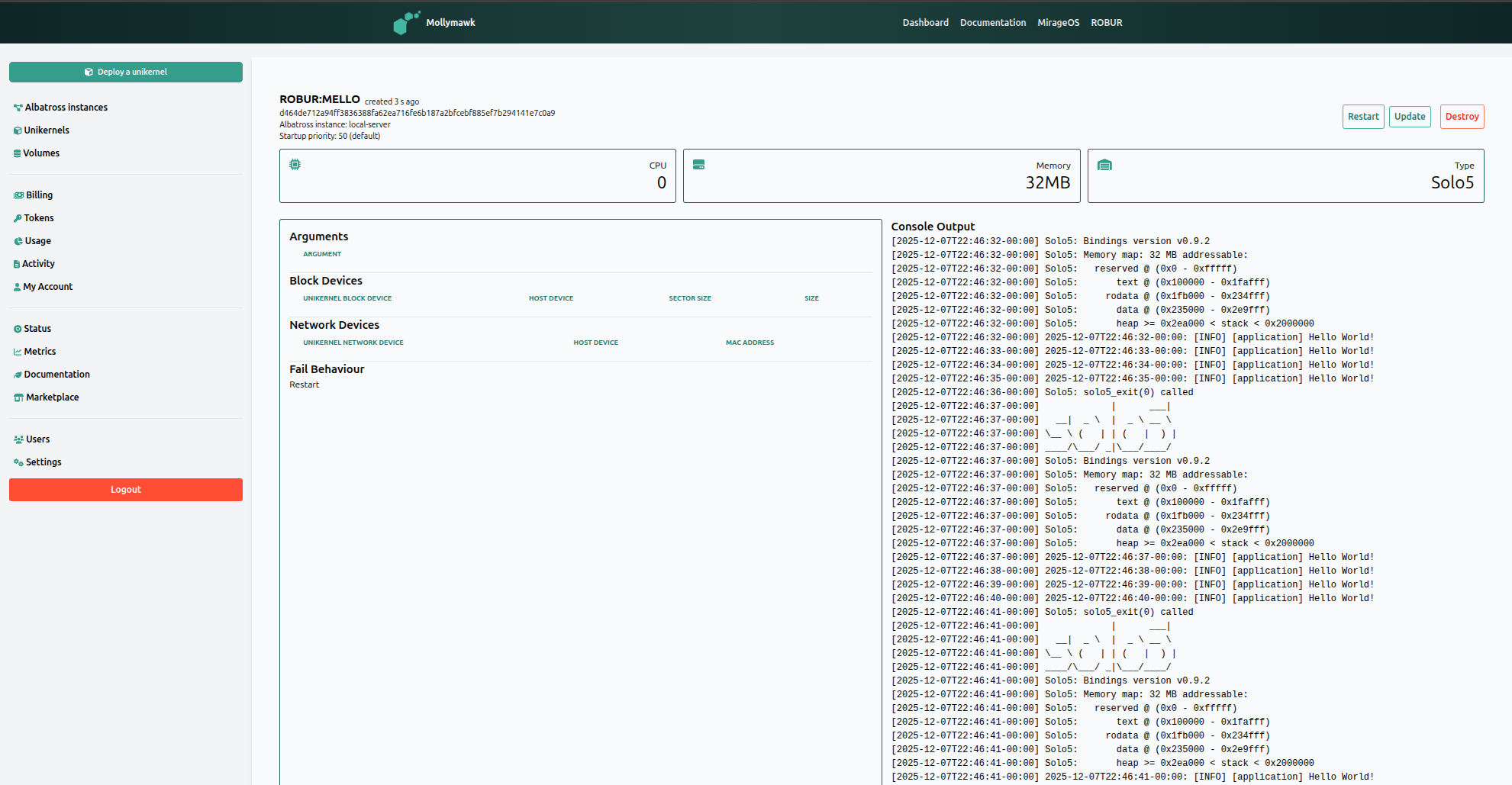
Action Buttons
Located in the top-right corner are three control buttons for managing the unikernel’s lifecycle:
- Restart: To reboot the unikernel.
- Update: To check for and apply newer builds of the unikernel from our reproducible builds platform.
- Destroy: To terminate and remove the unikernel instance.
Console Output
The right column features a scrollable display of the live standard output (logs) from the running unikernel.
Updating a unikernel
After clicking the Update button from the unikernel’s page view, mollymawk checks our reproducible builds database if there is a newer version of the unikernel binary available. If any is found, a comparison page is displayed to the user which shows the differences between their currently deployed build and the new build.
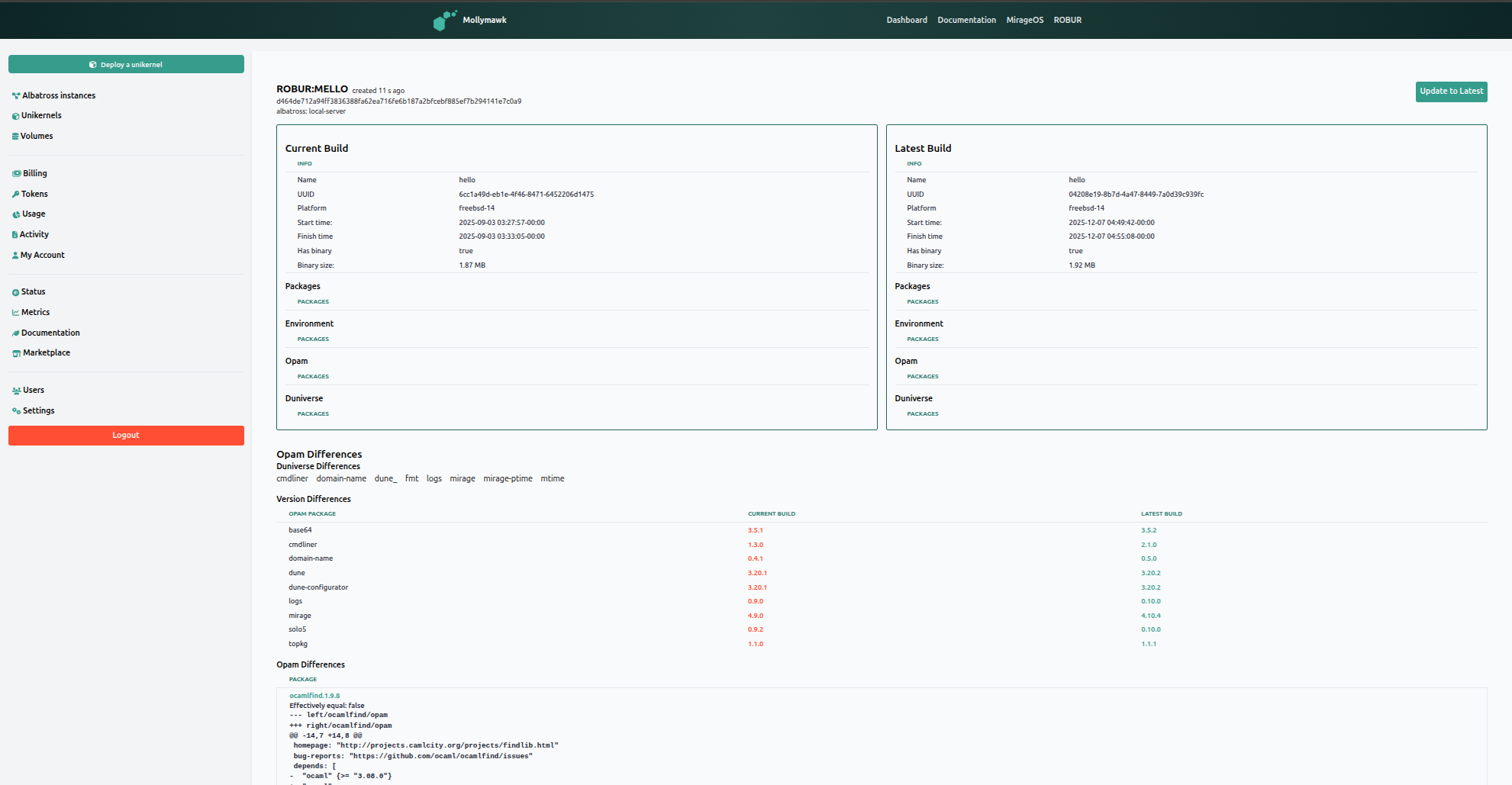
If all is well, click on the Update to Latest button to proceed. A modal will be displayed to enable the user add after-checks or modify configuration parameters according to what the new build requires.

1. Liveliness Checks
These options allow the system to verify that the new build is functioning correctly immediately after deployment. If these checks fail, the system is designed to automatically rollback to the previous working build to prevent downtime.
- Perform a liveliness check: This is the master toggle to enable or disable verification steps after the update is applied.
- HTTP Check:
- Toggle: Enables a web-based availability test.
- HTTP Address: You can input a specific URL (e.g.,
https://example.com) for the system to query. If the unikernel fails to respond to this request, the check is considered failed. A success response from the endpoint/url is enough for this check to pass.
- DNS Check:
- Toggle: Enables a domain name resolution test.
- Domain Name & IP: You verify that the unikernel is correctly resolving specific domains by entering a Domain name (e.g.,
robur.coop) and the expected Domain IP address (e.g.,127.0.0.1).
2. Configuration Updates
When updating the binary, you also have the option to change how the unikernel runs. This is particularly useful if the new build requires more memory or different boot arguments than the previous one.
- Update the configuration for this build: A toggle that enables the editing of runtime parameters.
- JSON Configuration: Unlike the initial graphical deployment form, configuration updates here are handled via a raw JSON editor. This allows you to define specific arguments using JSON syntax.
If no new configuration is provided in this JSON field, the system defaults to reusing the configuration from the currently running instance.
Think of this update process like organ transplant surgery. The Configuration Update is ensuring the new organ fits the body (setting the right size/connections). The Liveliness Check is the doctor checking for a pulse immediately after surgery. If there is no pulse (the check fails), the doctors immediately reverse the procedure (Rollback) to keep the patient alive.
Volumes
In the context of Mollymawk and MirageOS, a Volume is a persistent block storage device. While a unikernel’s RAM is volatile (data is lost when the unikernel stops or restarts), Volumes provide a way to store data permanently. These are logical chunks of disk space allocated on the host server (Albatross instance) that can be attached to your unikernels.

The Volumes dashboard allows for full lifecycle management of these storage units:
- Data Transport (Upload/Download): Unlike many standard cloud block storage systems that only allow attachment, Mollymawk provides direct data access via the browser.
- Upload: Users can upload data directly into a volume. The creation modal even includes a toggle to “Dump data to this volume” immediately upon creation.
- Download: Users can download the entire contents of a volume as a binary file (octet-stream) via the dashboard.
Creating a new Volume
Click on the Create block device button. A modal should display which contains the form for creating a new volume.
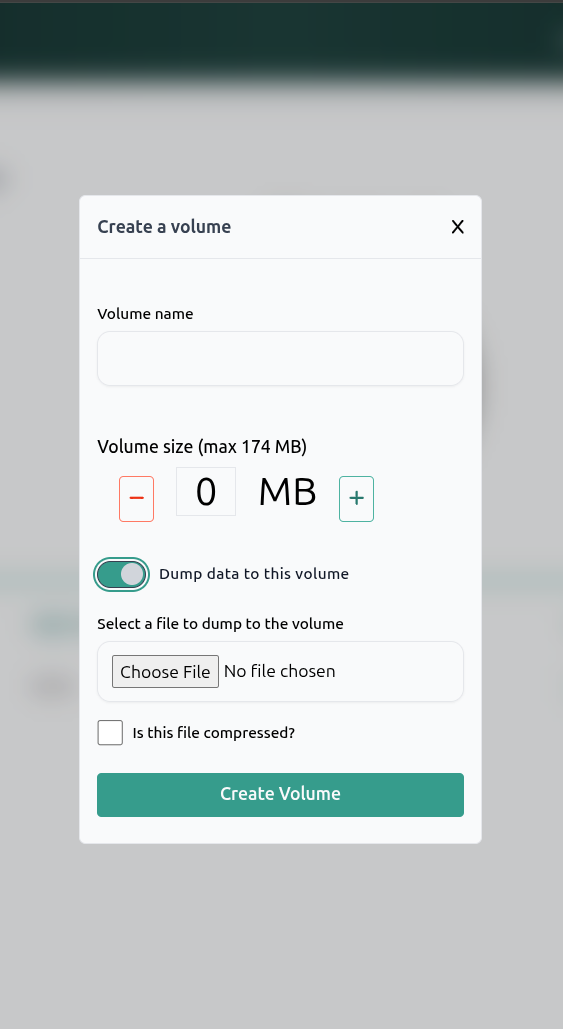
- Creation and Sizing: Users can create new block devices by specifying a Volume name and a Volume size (measured in Megabytes). The interface automatically calculates the maximum size available based on the user’s resource policy (e.g., “can assign up to: 174 MB”).
We have a toggle Dump data to this volume which allows us to upload files to the block device upon creation. If the file we are uploading is a compressed file, be sure to activate the Is this file compressed checkbox.
Integration with Unikernels
Volumes are designed to be “plugged in” to unikernels at boot time.
- Attachment: During the unikernel deployment process, there is a specific configuration section for Block devices.
- Mapping: When attaching a volume, the system maps the Host Device (the volume you created) to a Unikernel Block Device name (how the application sees the disk).
- Persistence: This setup allows a unikernel to write logs, database files, or other critical data to the volume, so that even if the unikernel is destroyed and redeployed, the data remains safe on the volume.
If a unikernel is like a game console, the Volume is the memory card. You can turn the console off or even buy a brand new one (redeploy a new unikernel), but as long as you plug that memory card (Volume) into the new machine, your saved games and progress (data) are still there, exactly as you left them.
Tokens
In Mollymawk, Tokens are authentication credentials designed for programmatic access and automation rather than interactive browser sessions.
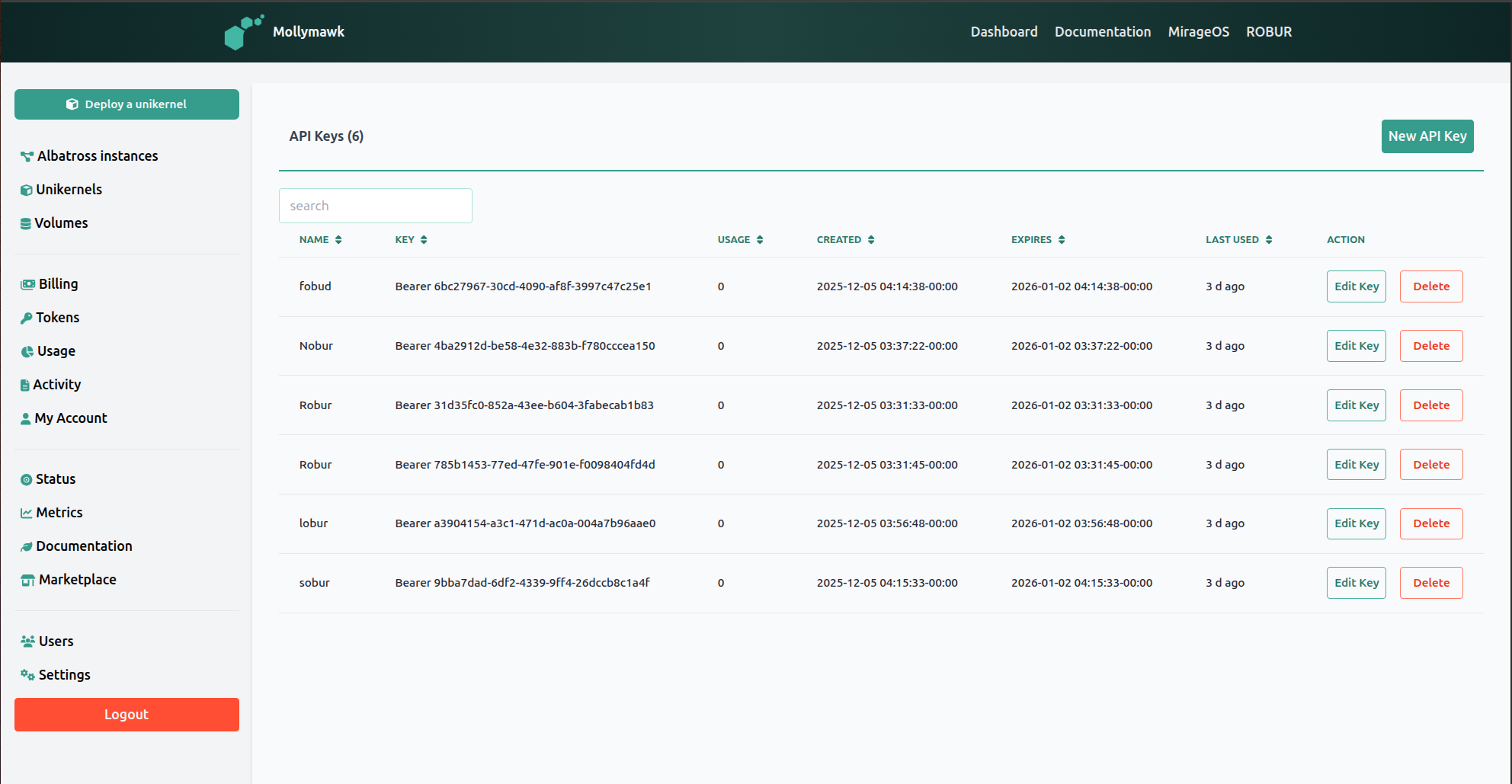
Primary Uses:
- External Automation: Tokens allow external scripts or CI/CD pipelines to interact with the Mollymawk API without a human user logging in via the web interface. They are essential for automated deployments,.
- Bearer Authentication: Unlike browser sessions that use cookies, these tokens are passed in the HTTP headers of requests. The backend explicitly checks for these tokens to validate requests for API-specific endpoints.
- Resource Management: Tokens grant permissions to perform critical operations, including:
- Unikernels: Listing, creating, restarting, destroying, and updating unikernels.
- Volumes: Creating, uploading data to, and deleting block storage volumes.
- Usage Tracking: The system tracks how often a token is used. The dashboard displays a “Usage” count and a “Last Used” timestamp (e.g., “3 d ago”) for every key, allowing users to monitor activity.
Creating a new token
Tokens are generated via the user dashboard. The process involves the following steps:
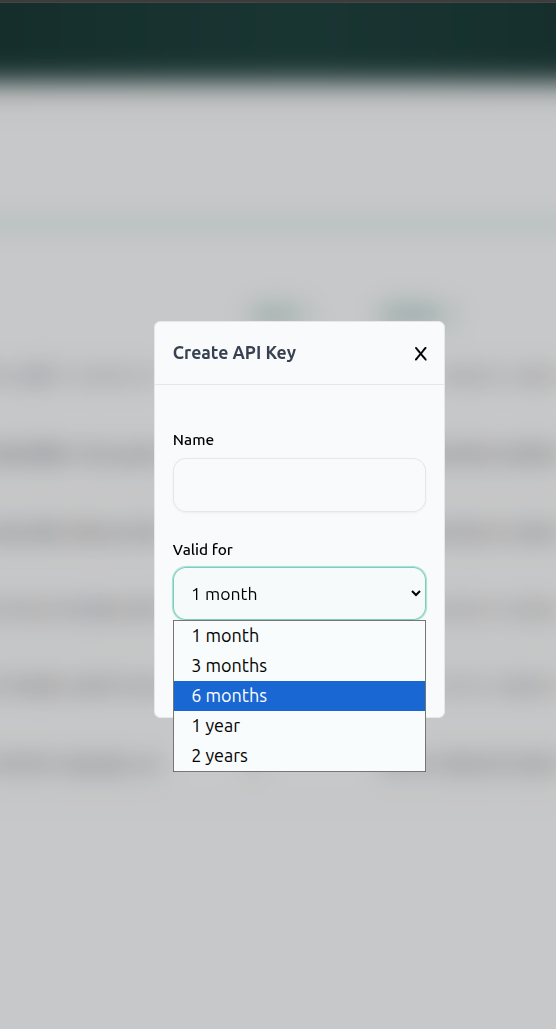
- Access the Token Page: Navigate to the Tokens tab in the sidebar menu.
- Initiate Creation: Click the New API Key button located in the top right corner of the page.
- Configure the Key: A modal window titled “Create API Key” will appear. You must provide:
- Name: A label to identify the token (e.g., “Github CI”).
- Validity Period: You must select an expiration duration from the dropdown menu. Options include 1 month, 3 months, 6 months, 1 year, or 2 years.
- Generation: Clicking the create button the backend to generate the token, save it with the specified expiration, and return it to the user.
Think of your Password as your ID Badge. You use it to walk through the front door (login) and work at your desk (dashboard). A Token is like a specific Service Key you give to a delivery driver or a contractor. You give it to them so they can drop off packages (deploy code) or pick up items (download volumes) automatically without you needing to be there to open the door for them every time. Furthermore, this key automatically expires after a set time so they can’t use it forever.
Rest API
Mollymawk’s API system allows mollymawk to be used via programmatic access, such as in CI/CD pipelines.
Base URL
If you deploy mollymawk, your base url will be what you use below. For this documentation, we will use an example url:
https://mollymawk.test
All paths in this document are relative to this base.
Authorization
Most API endpoints require Bearer token authentication.
Include an Authorization header of the form:
Authorization: Bearer <ACCESS_TOKEN>
The <ACCESS_TOKEN> is an api key for the user. See Generate a new API Key
Request Headers
All api endpoints expect:
Content-Type: application/json or multipart/form-data
Accept: application/json
Authorization: Bearer <ACCESS_TOKEN>
Response Envelope
All responses share a common envelope:
{
  "status": 200,
  "title": "Success",
  "success": true,
  "data": ...
}
status— HTTP-like status code as an integer (e.g. 200, 400, 404, 500)title— short string version describing the statussuccess— boolean indicating overall successdata— endpoint-specific payload (object or string, depending on call)
Endpoints
Authentication
Authenticates a user using their email and password. Upon success, it returns the user’s profile data. This endpoint can be used to retrieve an api token.
Endpoint:
POST /api/login
Content-Type:
application/json
Request Parameters:
The request body must be a JSON object containing the following fields:
| Field | Type | Required | Description |
|---|---|---|---|
email | string | Yes | The email address registered to the account. |
password | string | Yes | The user’s password. Must be at least 8 characters long. |
Example:
curl -X POST https://mollymawk.test/api/login \
  -H "Content-Type: application/json" \
  -d '{
    "email": "user@example.com",
    "password": "password123"
  }'
Success Response (example):
{
    "status": 200,
    "title": "200",
    "success": true,
    "data": {
        "name": "user",
        "email": "user@example.com",
        "email_verified": null,
        "password": "eVHL6CIc5phEoElSOACRk1Kztd3CFZD68vzHAt9StFI=",
        "uuid": "1f42ba42-5458-479b-8095-8450afde8d6b",
        "tokens": [
            {
                "token_type": "Bearer",
                "value": "6bc27967-30cd-4090-af8f-3997c47c25e1",
                "expires_in": 2419200,
                "created_at": "2025-12-05 04:14:38-00:00",
                "last_access": "2025-12-05 04:14:38-00:00",
                "name": "fobud",
                "usage_count": 13
            },
            ...
        ],
        "cookies": [
            {
                "name": "molly_session",
                "created_at": "2025-12-08 16:53:03-00:00",
                "value": "YTI2Y2JhNmUtMmI5NS00OTQ3LTg5ZTAtY2E1MDJmOThjYjhj",
                "expires_in": 604800,
                "uuid": "1f42ba42-5458-479b-8095-8450afde8d6b",
                "last_access": "2025-12-08 16:53:03-00:00",
                "user_agent": "Mozilla/5.0 (X11; Linux x86_64) AppleWebKit/537.36 (KHTML, like Gecko) Chrome/141.0.0.0 Safari/537.36"
            },
            ...
        ],
        "created_at": "2025-12-07 23:12:26-00:00",
        "updated_at": "2025-12-08 16:23:36-00:00",
        "email_verification_uuid": null,
        "active": true,
        "super_user": true,
        "unikernel_updates": [
            {
                "name": "mello",
                "job": "hello",
                "uuid": "6cc1a49d-eb1e-4f46-8471-6452206d1475",
                "config": {
                    "typ": "solo5",
                    "compressed": false,
                    "fail_behaviour": {
                        "restart": null,
                        "exit_code": [],
                        "all_exit_codes": false
                    },
                    "cpuid": 0,
                    "memory": 0,
                    "block_devices": [],
                    "network_interfaces": [],
                    "arguments": []
                },
                "timestamp": "2025-12-07 23:08:24-00:00"
            }
        ]
    }
}
Error Responses:
If the request fails, the server returns a JSON string containing the error message.
-
Status Code:
400 Bad Request"All fields must be filled."— One or more required fields are missing or empty."Invalid email address."— The email format is incorrect."Password must be at least 8 characters long."— The password provided is too short."This account does not exist."— The email provided is not found in the database."This account is not active"— The user account has been deactivated by an administrator."Invalid email or password."— The password provided does not match the stored hash.
-
Status Code:
500 Internal Server Error- May occur if there is a failure updating the user session in the storage backend.
Unikernel Operations
List unikernels
Retrieves unikernel information for a user accross all albatross servers.
Endpoint:
GET /api/unikernels
Example:
curl -X GET https://mollymawk.test/api/unikernels \
  -H "Authorization: Bearer <access_token>"
Success Response (example):
Returns a JSON object containing data (a list of lists, where each inner list contains unikernel objects from a specific Albatross instance) and errors (a list of errors from instances that could not be queried).
{
  "data": [
    [
      {
        "name": "hello",
        "fail_behaviour": {
          "restart": null,
          "exit_code": [],
          "all_exit_codes": true
        },
        "cpuid": 10,
        "memory": 32,
        "block_devices": [],
        "network_interfaces": [],
        "arguments": []
      }
    ]
  ],
  "errors": []
}
Note: If an Albatross instance fails to respond, it will appear in the errors list rather than causing a 500 error for the whole request.
Failure Messages:
-
Status Code:
400 Bad Request"Token value is not valid <token>"— The provided API token was not found or has expired."User account is deactivated"— The user is not active.
-
Status Code:
500 Internal Server Error- May occur if the server encounters an unexpected error while aggregating results, though individual instance failures are generally handled gracefully within the
errorsfield of a 200 OK response.
- May occur if the server encounters an unexpected error while aggregating results, though individual instance failures are generally handled gracefully within the
Deploy a unikernel
Deploys a new unikernel to a specified albatross server. This endpoint handles the upload of the unikernel binary and its configuration parameters.
Endpoint:
POST /api/unikernel/create
Content-Type:
multipart/form-data
Request Parameters:
The request must be sent as multipart form data containing the following fields:
| Field | Type | Required | Description |
|---|---|---|---|
albatross_instance | string | Yes | The name of the albatross server instance where the unikernel will be deployed. |
unikernel_name | string | Yes | The name to assign to the deployed unikernel. |
unikernel_config | string (JSON) | Yes | A JSON string containing resource and runtime configuration (see details below). |
unikernel_force_create | string | No | Set to "true" to force creation (e.g., overwrite existing). Defaults to false. |
molly_csrf | string | Yes | Leave blank for API calls |
binary | file | Yes | The unikernel image file (binary) to be uploaded. |
Unikernel Configuration JSON (unikernel_config):
The unikernel_config field must be a JSON string representing the following structure:
| JSON Field | Type | Description |
|---|---|---|
cpuid | int | The CPU ID to pin the unikernel to. |
memory | int | Memory allocation in MB. Default is 32. |
arguments | list | Command line arguments to pass to the unikernel. |
fail_behaviour | string/object | "quit" or {"restart": <exit_codes>} (e.g. {"restart": null} for always, or {"restart": {"exit_code":}}). |
block_devices | list | List of objects: {"name": "internal_name", "host_device": "host_vol", "sector_size": 512}. |
network_interfaces | list | List of objects: {"name": "service", "host_device": "tap0", "mac": "..."}. |
startup | int | Startup priority (1-100). Default is 50. |
Example Request:
curl -X POST https://mollymawk.test/api/unikernel/create \
  -H "Authorization: Bearer <access_token>" \
  -F "albatross_instance=eu-west-2" \
  -F "unikernel_name=hello-world" \
  -F "unikernel_force_create=false" \
  -F "molly_csrf=''" \
  -F 'unikernel_config={
        "cpuid": 0,
        "memory": 64,
        "arguments": [],
        "fail_behaviour": "quit",
        "network_interfaces": [],
        "block_devices": []
      }' \
  -F "binary=@/path/to/hello_world.hvt"
Success Response:
- Status Code:
200 OK - Body: A JSON object returned indicating the result of the operation.
{
  "status": 200,
  "title": "200",
  "success": true,
  "data": "created unikernel"
}
Error Responses:
-
Status Code:
400 Bad Request"One or more required fields are missing."— Fields likealbatross_instance,unikernel_name,binary,unikernel_config,molly_csrfare missing."Invalid unikernel arguments: ..."— Theunikernel_configJSON string was invalid or contained incorrect types."Error converting instance name: ..."— The provided instance name format is invalid."Error converting unikernel name: ..."— The provided unikernel name format is invalid.
-
Status Code:
404 Not Found"Error finding albatross instance: ..."— The specifiedalbatross_instancedoes not exist in the system configuration.
-
Status Code:
500 Internal Server Error"Albatross Query Error: ..."— The server failed to communicate with the albatross server."Albatross Response Error: ..."— The albatross server returned an error string (e.g., resource exhaustion, name conflict)."Albatross JSON Error: ..."— The response from the albatross server could not be parsed.
Destroy a Unikernel
Destroys (stops and removes) an existing unikernel running on a specific albatross server.
Endpoint:
POST /api/unikernel/destroy
Content-Type:
application/json
Request Parameters:
The request body must be a JSON object containing the following fields:
| Field | Type | Required | Description |
|---|---|---|---|
name | string | Yes | The name of the unikernel to destroy. |
albatross_instance | string | Yes | The name of the albatross server where the unikernel is running. |
Example:
curl -X POST https://mollymawk.test/api/unikernel/destroy \
  -H "Authorization: Bearer <access_token>" \
  -H "Content-Type: application/json" \
  -d '{
    "name": "hello-world",
    "albatross_instance": "eu-west-2"
  }'
Success Response:
- Status Code:
200 OK - Body: A JSON string or object returned confirming the destruction.
{
  "status": 200,
  "title": "200",
  "success": true,
  "data": "destroyed unikernel"
}
Failure Messages:
-
Status Code:
400 Bad Request"Couldn't find unikernel name in json"— Thenameoralbatross_instancefields are missing."Error converting instance name: ..."— The provided instance name format is invalid."Error converting unikernel name: ..."— The provided unikernel name format is invalid.
-
Status Code:
404 Not Found"Error finding albatross instance: <instance_name>"— The specified albatross server is not configured.
-
Status Code:
500 Internal Server Error"Error querying albatross: ..."— Mollymawk failed to communicate with the albatross server."failure: ..."— The albatross server returned a failure (e.g., the unikernel was not found or could not be stopped).
Restart a Unikernel
Restarts a running unikernel on a specific albatross server. This sends a restart command to albatross, which attempts to stop and then start the unikernel.
Endpoint:
POST /api/unikernel/restart
Content-Type:
application/json
Request Parameters:
The request body must be a JSON object containing the following fields:
| Field | Type | Required | Description |
|---|---|---|---|
name | string | Yes | The name of the unikernel to restart. |
albatross_instance | string | Yes | The name of the albatross server where the unikernel is running. |
Example Request:
curl -X POST https://mollymawk.test/api/unikernel/restart \
  -H "Authorization: Bearer <access_token>" \
  -H "Content-Type: application/json" \
  -d '{
    "name": "hello-world",
    "albatross_instance": "eu-west-2"
  }'
Success Response:
- Status Code:
200 OK - Body: A JSON object returned by the albatross server confirming the action.
{
  "status": 200,
  "title": "200",
  "success": true,
  "data": "created unikernel"
}
Failure Messages:
-
Status Code:
400 Bad Request"Couldn't find unikernel name in json"— Thenameoralbatross_instancefields are missing from the request body."Error converting instance name: ..."— The provided instance name format is invalid."Error converting unikernel name: ..."— The provided unikernel name format is invalid.
-
Status Code:
404 Not Found"Error finding albatross instance: <instance_name>"— The specified albatross server could not be found in the system configuration.
-
Status Code:
500 Internal Server Error"Error querying albatross: ..."— Mollymawk failed to communicate with albatross.- The response may also contain an error string directly from Albatross if the restart operation failed on the VMM side (e.g., unikernel not found).
Stream Unikernel Console
Establishes a Server-Sent Events (SSE) connection to stream the console output of a running unikernel in real-time.
Endpoint:
GET /api/unikernel/console
Content-Type:
text/event-stream
Request Parameters:
The parameters are passed as HTTP Query Parameters (URL arguments):
| Parameter | Type | Required | Description |
|---|---|---|---|
unikernel | string | Yes | The name of the unikernel to monitor. |
instance | string | Yes | The name of the albatross server instance where the unikernel is running. |
Example Request:
curl -X GET "https://mollymawk.test/api/unikernel/console?unikernel=hello-world&instance=eu-west-2" \
  -H "Authorization: Bearer <access_token>" \
  -H "Accept: text/event-stream"
Success Response:
- Status Code:
200 OK - Headers:
Content-Type: text/event-streamCache-Control: no-cache(Typical for SSE, implied by streaming logic)
- Body: A stream of event data. Each event contains a JSON object with a timestamp and the console line.
data:{"timestamp":"2023-10-27T10:05:00Z","line":"[INFO] Application started"}

data:{"timestamp": "2025-12-08T17:45:30-00:00","line": "2025-12-08T17:45:30-00:00: [INFO] [application] Hello World!"}
Failure Messages:
-
Status Code:
400 Bad Request"Couldn't convert unikernel name: <error>"— The provided unikernel name is invalid format."Couldn't find <param_name> in query params"— Theunikernelorinstanceparameter is missing."Error with albatross instance name: <error>"— The instance name provided is invalid.
-
Status Code:
404 Not Found"Couldn't find albatross instance with name: <instance_name>"— The specified albatross server does not exist.
-
Status Code:
500 Internal Server Error- May return a general error message if the Albatross backend connection fails during the setup of the stream.
Volume Operations
Create a block device
Creates a new block storage volume on a specified server and (optionally) populates it with data uploaded via the request.
Endpoint:
POST /api/volume/create
Content-Type:
multipart/form-data
Request Parameters:
The request must be sent as a multipart form containing the following parts:
| Part Name | Type | Required | Description |
|---|---|---|---|
albatross_instance | string | Yes | The name of the albatross server instance where the volume will be created. |
block_data | file | Yes | The binary data file to initialize the volume with. You can pass undefined or null. |
json_data | string (JSON) | Yes | A JSON string containing the volume configuration (details below). |
molly_csrf | string | Yes | You can pass an empty string for this API endpoint. |
JSON Data Structure (json_data):
The json_data form part must be a stringified JSON object with the following fields:
| JSON Field | Type | Description |
|---|---|---|
block_name | string | The name to assign to the new volume. |
block_size | int | The size of the volume in megabytes (MB). |
block_compressed | bool | Whether the volume data should be compressed/decompressed by the VMM. |
Example Request:
curl -X POST https://mollymawk.test/api/volume/create \
  -H "Authorization: Bearer <access_token>" \
  -F "albatross_instance=eu-west-2" \
  -F "block_data=@/path/to/disk_image.img" \
  -F "molly_csrf=''" \
  -F 'json_data={
        "block_name": "data_vol_1",
        "block_size": 1024,
        "block_compressed": false
      }'
Success Response:
- Status Code:
200 OK - Body: A JSON object returned by the albatross server confirming the operation.
{
  "status": 200,
  "title": "200",
  "success": true,
  "data": "set block device"
}
Failure Messages:
-
Status Code:
400 Bad Request"One or more required fields are missing."— A required form part (e.g.,json_data,block_data) is missing."Invalid block name: <error>"— The provided block name contains invalid characters or format."Error converting name to albatross instance <error>"— The instance name format is invalid."unexpected field. got <error>"— The JSON data contained unexpected fields or structure."expected a dictionary"— Thejson_datastring was not a valid JSON object.
-
Status Code:
404 Not Found"Couldn't find albatross instance with name <name>"— The specifiedalbatross_instancedoes not exist.
-
Status Code:
500 Internal Server Error"an error with albatross. got <error>"— The server failed to communicate with the VMM or the VMM rejected the creation request (e.g., insufficient storage space).
Delete a block device
Deletes an existing block storage volume from a specified albatross server.
Endpoint:
POST /api/volume/delete
Content-Type:
application/json
Request Parameters:
The request body must be a JSON object containing the following fields:
| Field | Type | Required | Description |
|---|---|---|---|
block_name | string | Yes | The name of the volume to be deleted. |
albatross_instance | string | Yes | The name of the albatross server instance where the volume is located. |
Example:
curl -X POST https://mollymawk.test/api/volume/delete \
  -H "Authorization: Bearer <access_token>" \
  -H "Content-Type: application/json" \
  -d '{
    "block_name": "my-data-vol",
    "albatross_instance": "eu-west-2",
  }'
Success Response:
- Status Code:
200 OK - Body: A JSON object returned confirming the removal.
{
  "status": 200,
  "title": "200",
  "success": true,
  "data": "removed block"
}
Failure Messages:
-
Status Code:
400 Bad Request"Couldn't find block name in json"— Theblock_nameoralbatross_instancefields are missing."Error converting instance name: <error>"— The provided instance name format is invalid."Error converting block name: <error>"— The provided block name format is invalid.
-
Status Code:
404 Not Found"Couldn't find albatross instance with name: <name>"— The specified Albatross instance does not exist.
-
Status Code:
500 Internal Server Error"Error querying albatross: <error>"— Mollymawk failed to communicate with the albatross server."<albatross error>"— The albatross server returned a failure (e.g., if the volume does not exist or cannot be removed).
Upload Data to a block device
Uploads data to an existing block device on a specific albatross server. This is used to overwrite a volume with a disk image or binary data.
(Note: We can’t upload to a block device which is currently attached to a running unikernel).
Endpoint:
POST /api/volume/upload
Content-Type:
multipart/form-data
Request Parameters:
The request must be sent as multipart form data.
| Part Name | Type | Required | Description |
|---|---|---|---|
albatross_instance | string | Yes | The name of the albatross server instance hosting the volume. |
molly_csrf | string | Yes | Leave empty |
json_data | string (JSON) | Yes | A JSON string containing the volume configuration (details below). |
block_data | file | Yes | The binary data file to upload to the volume. |
JSON Data Structure (json_data):
The json_data form part must be a stringified JSON object containing the following fields:
| JSON Field | Type | Required | Description |
|---|---|---|---|
block_name | string | Yes | The name of the target volume. |
block_compressed | bool | Yes | Whether the uploaded data should be handled as compressed by the albatross server. |
block_size | int | Yes* | The size of the block volume in MB. (Note: While strictly required by the server’s input parser, this value is ignored during the upload process and only considered when we are creating a new block device). |
Example Request:
curl -X POST https://mollymawk.test/api/volume/upload \
  -H "Authorization: Bearer <access_token>" \
  -F "albatross_instance=eu-west-2" \
  -F "molly_csrf=''" \
  -F "block_data=@/path/to/image.iso" \
  -F 'json_data={
        "block_name": "vol1",
        "block_compressed": false,
        "block_size": 0
      }'
Success Response:
- Status Code:
200 OK - Body: A JSON object wrapping the Albatross response.
{
  "status": 200,
  "title": "200",
  "success": true,
  "data": "set block device"
}
Failure Messages:
-
Status Code:
400 Bad Request"One or more required fields are missing."— Request is missingalbatross_instance,json_data, orblock_data."unexpected field. got <json>"— Thejson_datastructure was incorrect (e.g., missingblock_size)."expected a dictionary"— Thejson_datawas not a valid JSON object."Invalid block name: <error>"— The block name format is invalid."Error converting name to albatross instance <error>"— The instance name format is invalid.
-
Status Code:
404 Not Found"Couldn't find albatross instance with name <name>"— The specified albatross server does not exist.
-
Status Code:
500 Internal Server Error"an error with albatross. got <error>"— The albatross server failed to write the data (e.g., volume does not exist, connection failed).
Downloading Data from a block device
Initiates a stream to download the content of a specific block device from an albatross server. The server sets the response headers to trigger a file download (application/octet-stream).
(Note: We can’t download from a block device which is currently attached to a running unikernel).
Endpoint:
POST /api/volume/download
Content-Type:
application/json
Request Parameters:
The request body must be a JSON object containing the following fields:
| Field | Type | Required | Description |
|---|---|---|---|
albatross_instance | string | Yes | The name of the albatross server hosting the volume. |
block_name | string | Yes | The name of the volume to download. |
compression_level | int | Yes | The compression level to apply (e.g., 0 for none, up to 9). |
Example Request:
curl -X POST https://mollymawk.test/api/volume/download \
  -H "Authorization: Bearer <access_token>" \
  -H "Content-Type: application/json" \
  -d '{
    "albatross_instance": "eu-west-2",
    "block_name": "data_vol_1",
    "compression_level": 5,
  }' \
  --output data_vol_1_dump.img
Success Response:
- Status Code:
200 OK - Headers:
Content-Type:application/octet-streamContent-Disposition:attachment; filename="data_vol_1_dump"
- Body: A binary stream of the volume data.
Failure Messages:
-
Status Code:
400 Bad Request"Couldn't find block name in json"— Required fields (instance, block name, compression) are missing from the JSON body."Couldn't convert instance name: <error>"— The provided instance name format is invalid."Couldn't convert block name: <error>"— The provided block name format is invalid.
-
Status Code:
404 Not Found"Couldn't find albatross instance with name: <name>"— The specified Albatross instance does not exist in the configuration.
-
Status Code:
500 Internal Server Error- May occur if the server fails to establish the data stream with the Albatross backend.
Token Management
Create a new API Key (Token)
Generates a new long-lived API token (Bearer token) for the authenticated user. This token can be used to authenticate requests to other API endpoints (e.g., deploying unikernels via CI/CD pipelines).
Endpoint:
POST /api/tokens/create
Content-Type:
application/json
Request Parameters:
The request body must be a JSON object containing the following fields:
| Field | Type | Required | Description |
|---|---|---|---|
token_name | string | Yes | A descriptive name for the token (e.g., “CI Pipeline”). |
token_expiry | int | Yes | The validity period of the token in seconds. |
Example Request:
curl -X POST https://mollymawk.test/api/tokens/create \
  -H "Authorization: Bearer <existing_token>" \
  -H "Content-Type: application/json" \
  -d '{
    "token_name": "Gitlab CI",
    "token_expiry": 400000,
  }'
Success Response:
- Status Code:
200 OK - Body: A JSON object representing the newly created token, including its secret value.
{
  "status": 200,
  "title": "200",
  "success": true,
  "data": {
    "token_type": "Bearer",
    "value": "3cb6bc72-a52d-4f4f-969c-c85465875774",
    "expires_in": 400000,
    "created_at": "2025-12-09 05:12:11-00:00",
    "last_access": "2025-12-09 05:12:11-00:00",
    "name": "Gitlab CI",
    "usage_count": 0
  }
}
Failure Messages:
-
Status Code:
400 Bad Request"Create token: Unexpected fields..."— Thetoken_nameortoken_expiryfields are missing or malformed."Auth token not found..."— Missing authentication (if not using a valid header).
-
Status Code:
500 Internal Server Error"Storage error with <details>"— The server failed to save the new token to the database.
Upade an API Key
Updates the name and expiration settings of an existing API token. This endpoint allows modifying the metadata of a token without changing its secret value.
Endpoint:
POST /api/tokens/update
Content-Type:
application/json
Request Parameters:
The request body must be a JSON object containing the following fields:
| Field | Type | Required | Description |
|---|---|---|---|
token_value | string | Yes | The UUID string of the token to be updated. |
token_name | string | Yes | The new descriptive name for the token. |
token_expiry | int | Yes | The new validity period in seconds (from creation time). |
Example Request:
curl -X POST https://mollymawk.test/api/tokens/update \
  -H "Authorization: Bearer <access_token>" \
  -H "Content-Type: application/json" \
  -d '{
    "token_value": "3cb6bc72-a52d-4f4f-969c-c85465875774",
    "token_name": "updated-gitlab-token",
    "token_expiry": 800000
  }'
Success Response:
- Status Code:
200 OK - Body: A JSON object representing the updated token details.
{
  "status": 200,
  "title": "200",
  "success": true,
  "data": {
    "token_type": "Bearer",
    "value": "3cb6bc72-a52d-4f4f-969c-c85465875774",
    "expires_in": 800000,
    "created_at": "2025-12-09 05:12:11-00:00",
    "last_access": "2025-12-09 05:12:11-00:00",
    "name": "updated-gitlab-token",
    "usage_count": 0
  }
}
Failure Messages:
-
Status Code:
400 Bad Request"Update token: Unexpected fields. Got ..."— Required fields (token_name,token_expiry, ortoken_value) are missing or invalid types."Auth token not found"— The Authorization header is missing
-
Status Code:
404 Not Found"Token not found"— The providedtoken_valuedoes not match any token associated with the user.
-
Status Code:
500 Internal Server Error"Storage error with <details>"— The server failed to save the updated token to the database.
Delete an API Key
Revokes and removes a specific API token from the user’s account. This invalidates the token immediately, preventing it from being used for future authentication.
Endpoint:
POST /api/tokens/delete
Content-Type:
application/json
Request Parameters:
The request body must be a JSON object containing the following fields:
| Field | Type | Required | Description |
|---|---|---|---|
token_value | string | Yes | The UUID string of the token to be deleted. |
Example Request:
curl -X POST https://mollymawk.test/api/tokens/delete \
  -H "Authorization: Bearer <access_token>" \
  -H "Content-Type: application/json" \
  -d '{
    "token_value": "d3b07384-d113-4ec6-973d-285854e7432f",
  }'
Success Response:
- Status Code:
200 OK - Body: A JSON object confirming the deletion.
{
  "status": 200,
  "title": "OK",
  "success": true,
  "data": "Token deleted succesfully"
}
Failure Messages:
-
Status Code:
400 Bad Request"Delete token: Unexpected fields..."— Thetoken_valuefield is missing from the JSON body."Auth token not found"— The authorization header is missing.
-
Status Code:
500 Internal Server Error"Storage error with <details>"— An error occurred while trying to save the updated user record to the database.
Administration
Retry Albatross Connection (Admin)
Attempts to re-initialize the connection to a specific albatross server. This is useful if the instance has become unreachable or disconnected from the dashboard. This endpoint requires administrator privileges.
Endpoint:
GET /api/admin/albatross/retry
Content-Type:
application/json
Request Parameters:
The request uses HTTP Query Parameters (URL arguments).
| Parameter | Type | Required | Description |
|---|---|---|---|
instance | string | Yes | The name of the albatross server instance to reconnect to. |
Example Request:
curl -X GET "https://mollymawk.test/api/admin/albatross/retry?instance=eu-west-2" \
  -H "Authorization: Bearer <access_token>"
Success Response:
- Status Code:
200 OK - Body: A JSON object confirming the connection status.
{
  "status": 200,
  "title": "200",
  "success": true,
  "data": "Re-initialization successful, instance is back online"
}
Failure Messages:
-
Status Code:
400 Bad Request"Couldn't find instance in query params"— Theinstanceparameter is missing."Error with albatross instance name: <error>"— The provided instance name format is invalid."You don't have the necessary permissions..."— The user is not an administrator.
-
Status Code:
404 Not Found"Couldn't find albatross instance with name: <name>"— The specified instance name is not found in the configuration.
-
Status Code:
500 Internal Server Error"Re-initialization failed. See error logs: <error>"— The server could not establish a connection to the Albatross instance (e.g., network error, invalid certificates).